How Elastic Load Balancing works
A load balancer accepts incoming traffic from clients and routes requests to its registered targets (such as EC2 instances) in one or more Availability Zones. The load balancer also monitors the health of its registered targets and ensures that it routes traffic only to healthy targets. When the load balancer detects an unhealthy target, it stops routing traffic to that target. It then resumes routing traffic to that target when it detects that the target is healthy again.
You configure your load balancer to accept incoming traffic by specifying one or more listeners. A listener is a process that checks for connection requests. It is configured with a protocol and port number for connections from clients to the load balancer. Likewise, it is configured with a protocol and port number for connections from the load balancer to the targets.
Elastic Load Balancing supports the following types of load balancers:
-
Application Load Balancers
-
Network Load Balancers
-
Gateway Load Balancers
-
Classic Load Balancers
There is a key difference in how the load balancer types are configured. With Application Load Balancers, Network Load Balancers, and Gateway Load Balancers, you register targets in target groups, and route traffic to the target groups. With Classic Load Balancers, you register instances with the load balancer.
Availability Zones and load balancer nodes
When you enable an Availability Zone for your load balancer, Elastic Load Balancing creates a load balancer node in the Availability Zone. If you register targets in an Availability Zone but do not enable the Availability Zone, these registered targets do not receive traffic. Your load balancer is most effective when you ensure that each enabled Availability Zone has at least one registered target.
We recommend enabling multiple Availability Zones for all load balancers. With an Application Load Balancer however, it is a requirement that you enable at least two or more Availability Zones. This configuration helps ensure that the load balancer can continue to route traffic. If one Availability Zone becomes unavailable or has no healthy targets, the load balancer can route traffic to the healthy targets in another Availability Zone.
After you disable an Availability Zone, the targets in that Availability Zone remain registered with the load balancer. However, even though they remain registered, the load balancer does not route traffic to them.
Cross-zone load balancing
The nodes for your load balancer distribute requests from clients to registered targets. When cross-zone load balancing is enabled, each load balancer node distributes traffic across the registered targets in all enabled Availability Zones. When cross-zone load balancing is disabled, each load balancer node distributes traffic only across the registered targets in its Availability Zone.
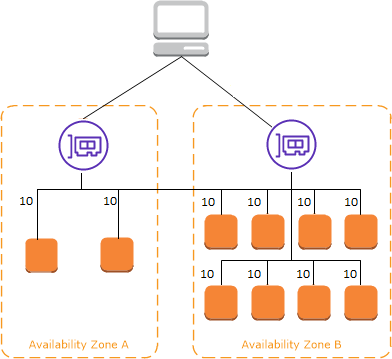
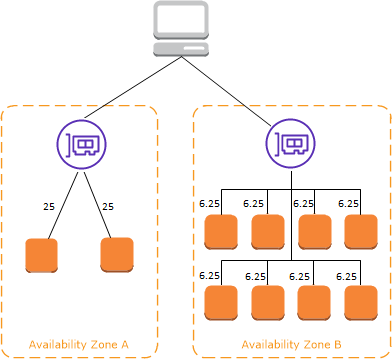
The following diagrams demonstrate the effect of cross-zone load balancing with round robin as the default routing algorithm. There are two enabled Availability Zones, with two targets in Availability Zone A and eight targets in Availability Zone B. Clients send requests, and Amazon Route 53 responds to each request with the IP address of one of the load balancer nodes. Based on the round robin routing algorithm, traffic is distributed such that each load balancer node receives 50% of the traffic from the clients. Each load balancer node distributes its share of the traffic across the registered targets in its scope.
If cross-zone load balancing is enabled, each of the 10 targets receives 10% of the traffic. This is because each load balancer node can route its 50% of the client traffic to all 10 targets.
If cross-zone load balancing is disabled:
-
Each of the two targets in Availability Zone A receives 25% of the traffic.
-
Each of the eight targets in Availability Zone B receives 6.25% of the traffic.
This is because each load balancer node can route its 50% of the client traffic only to targets in its Availability Zone.
With Application Load Balancers, cross-zone load balancing is always enabled at the load balancer level. At the target group level, cross-zone load balancing can be disabled. For more information, see Turn off cross-zone load balancing in the User Guide for Application Load Balancers.
With Network Load Balancers and Gateway Load Balancers, cross-zone load balancing is disabled by default. After you create the load balancer, you can enable or disable cross-zone load balancing at any time.
When you create a Classic Load Balancer, the default for cross-zone load balancing depends on how you create the load balancer. With the API or CLI, cross-zone load balancing is disabled by default. With the AWS Management Console, the option to enable cross-zone load balancing is selected by default. After you create a Classic Load Balancer, you can enable or disable cross-zone load balancing at any time. For more information, see Enable cross-zone load balancing in the User Guide for Classic Load Balancers.
Zonal shift
Zonal shift is a capability in Amazon Route 53 Application Recovery Controller (Route 53 ARC). With zonal shift, you can shift a load balancer resource away from an impaired Availability Zone with a single action. This way, you can continue operating from other healthy Availability Zones in an AWS Region.
When you start a zonal shift, your load balancer stops sending traffic for the resource to the affected Availability Zone. Route 53 ARC creates the zonal shift immediately. However, it can take a short time, typically up to a few minutes, to complete existing, in-progress connections in the affected Availability Zone. For more information, see How a zonal shift works: health checks and zonal IP addresses in the Amazon Route 53 Application Recovery Controller Developer Guide.
Zonal shifts are only supported on Application Load Balancers and Network Load Balancers with cross-zone load balancing turned off. If you turn on cross-zone load balancing, you can't start a zonal shift. For more information, see Resources supported for zonal shifts in the Amazon Route 53 Application Recovery Controller Developer Guide.
Before you use a zonal shift, review the following:
-
Cross-zone load balancing isn't supported with zonal shifts. You must turn off cross-zone load balancing to use this capability.
-
Zonal shift isn't supported when you use an Application Load Balancer as an accelerator endpoint in AWS Global Accelerator.
-
You can start a zonal shift for a specific load balancer only for a single Availability Zone. You can't start a zonal shift for multiple Availability Zones.
-
AWS proactively removes zonal load balancer IP addresses from DNS when multiple infrastructure issues impact services. Always check current Availability Zone capacity before you start a zonal shift. If your load balancers have cross-zone load balancing turned off and you use a zonal shift to remove a zonal load balancer IP address, the Availability Zone affected by the zonal shift also loses target capacity.
-
When an Application Load Balancer is a target of a Network Load Balancer, always start the zonal shift from the Network Load Balancer. If you start a zonal shift from the Application Load Balancer, the Network Load Balancer doesn't recognize the shift and continues to send traffic to the Application Load Balancer.
For more guidance and information, see Best practices with Route 53 ARC zonal shifts in the Amazon Route 53 Application Recovery Controller Developer Guide.
Request routing
Before a client sends a request to your load balancer, it resolves the load balancer's
domain name using a Domain Name System (DNS) server. The DNS entry is controlled by
Amazon, because your load balancers are in the amazonaws.com domain. The
Amazon DNS servers return one or more IP addresses to the client. These are the IP
addresses of the load balancer nodes for your load balancer. With Network Load Balancers, Elastic Load Balancing creates
a network interface for each Availability Zone that you enable, and uses it to get a static
IP address. You can optionally associate one Elastic IP address with each network interface
when you create the Network Load Balancer.
As traffic to your application changes over time, Elastic Load Balancing scales your load balancer and updates the DNS entry. The DNS entry also specifies the time-to-live (TTL) of 60 seconds. This helps ensure that the IP addresses can be remapped quickly in response to changing traffic.
The client determines which IP address to use to send requests to the load balancer. The load balancer node that receives the request selects a healthy registered target and sends the request to the target using its private IP address.
For more information, see Routing traffic to an ELB load balancer in the Amazon Route 53 Developer Guide.
Routing algorithm
With Application Load Balancers, the load balancer node that receives the request uses the following process:
-
Evaluates the listener rules in priority order to determine which rule to apply.
-
Selects a target from the target group for the rule action, using the routing algorithm configured for the target group. The default routing algorithm is round robin. Routing is performed independently for each target group, even when a target is registered with multiple target groups.
With Network Load Balancers, the load balancer node that receives the connection uses the following process:
-
Selects a target from the target group for the default rule using a flow hash algorithm. It bases the algorithm on:
-
The protocol
-
The source IP address and source port
-
The destination IP address and destination port
-
The TCP sequence number
-
-
Routes each individual TCP connection to a single target for the life of the connection. The TCP connections from a client have different source ports and sequence numbers, and can be routed to different targets.
With Classic Load Balancers, the load balancer node that receives the request selects a registered instance as follows:
-
Uses the round robin routing algorithm for TCP listeners
-
Uses the least outstanding requests routing algorithm for HTTP and HTTPS listeners
HTTP connections
Classic Load Balancers use pre-open connections, but Application Load Balancers do not. Both Classic Load Balancers and Application Load Balancers use
connection multiplexing. This means that requests from multiple clients on multiple
front-end connections can be routed to a given target through a single backend
connection. Connection multiplexing improves latency and reduces the load on your
applications. To prevent connection multiplexing, disable HTTP
keep-alive headers by setting the Connection: close
header in your HTTP responses.
Application Load Balancers and Classic Load Balancers support pipelined HTTP on front-end connections. They do not support pipelined HTTP on backend connections.
Application Load Balancers support the following HTTP request methods: GET, HEAD, POST, PUT, DELETE, OPTIONS, and PATCH.
Application Load Balancers support the following protocols on front-end connections: HTTP/0.9, HTTP/1.0, HTTP/1.1, and HTTP/2. You can use HTTP/2 only with HTTPS listeners, and can send up to 128 requests in parallel using one HTTP/2 connection. Application Load Balancers also support connection upgrades from HTTP to WebSockets. However, if there is a connection upgrade, Application Load Balancer listener routing rules and AWS WAF integrations no longer apply.
Application Load Balancers use HTTP/1.1 on backend connections (load balancer to registered target) by
default. However, you can use the protocol version to send the request to the
targets using HTTP/2 or gRPC. For more information, see Protocol versions. The keep-alive header is supported on backend
connections by default. For HTTP/1.0 requests from clients that do not have a host
header, the load balancer generates a host header for the HTTP/1.1 requests sent on
the backend connections. The host header contains the DNS name of the load
balancer.
Classic Load Balancers support the following protocols on front-end connections (client to load
balancer): HTTP/0.9, HTTP/1.0, and HTTP/1.1. They use HTTP/1.1 on backend
connections (load balancer to registered target). The keep-alive header is
supported on backend connections by default. For HTTP/1.0 requests from clients that
do not have a host header, the load balancer generates a host header for the
HTTP/1.1 requests sent on the backend connections. The host header contains the IP
address of the load balancer node.
HTTP headers
Application Load Balancers and Classic Load Balancers automatically add X-Forwarded-For, X-Forwarded-Proto, and X-Forwarded-Port headers to the request.
Application Load Balancers convert the hostnames in HTTP host headers to lower case before sending them to targets.
For front-end connections that use HTTP/2, the header names are in lowercase. Before the request is sent to the target using HTTP/1.1, the following header names are converted to mixed case: X-Forwarded-For, X-Forwarded-Proto, X-Forwarded-Port, Host, X-Amzn-Trace-Id, Upgrade, and Connection. All other header names are in lowercase.
Application Load Balancers and Classic Load Balancers honor the connection header from the incoming client request after proxying the response back to the client.
When Application Load Balancers and Classic Load Balancers using HTTP/1.1 receive an Expect: 100-Continue header, they immediately respond with HTTP/1.1 100 Continue without testing the content length header. The Expect: 100-Continue request header is not forwarded to it's targets.
When using HTTP/2, Application Load Balancers do not support the Expect: 100-Continue header from client requests. The Application Load Balancer will not respond with HTTP/2 100 Continue or forward this header to its targets.
HTTP header limits
The following size limits for Application Load Balancers are hard limits that cannot be changed:
-
Request line: 16 K
-
Single header: 16 K
-
Entire response header: 32 K
-
Entire request header: 64 K
Load balancer scheme
When you create a load balancer, you must choose whether to make it an internal load balancer or an internet-facing load balancer.
The nodes of an internet-facing load balancer have public IP addresses. The DNS name of an internet-facing load balancer is publicly resolvable to the public IP addresses of the nodes. Therefore, internet-facing load balancers can route requests from clients over the internet.
The nodes of an internal load balancer have only private IP addresses. The DNS name of an internal load balancer is publicly resolvable to the private IP addresses of the nodes. Therefore, internal load balancers can only route requests from clients with access to the VPC for the load balancer.
Both internet-facing and internal load balancers route requests to your targets using private IP addresses. Therefore, your targets do not need public IP addresses to receive requests from an internal or an internet-facing load balancer.
If your application has multiple tiers, you can design an architecture that uses both internal and internet-facing load balancers. For example, this is true if your application uses web servers that must be connected to the internet, and application servers that are only connected to the web servers. Create an internet-facing load balancer and register the web servers with it. Create an internal load balancer and register the application servers with it. The web servers receive requests from the internet-facing load balancer and send requests for the application servers to the internal load balancer. The application servers receive requests from the internal load balancer.
Network MTU for your load balancer
The maximum transmission unit (MTU) determines the size, in bytes, for the largest packet
that can be sent over the network. The larger the MTU of a connection, the more data that
can be passed in a single packet. Ethernet frames consist of the packet, or the actual data
you are sending, and the network overhead information information that surrounds it. Traffic
sent over an internet gateway has an MTU of 1500. This means that if a packet is over 1500
bytes, it is fragmented to be sent using multiple frames, or it is dropped if the Don't
Fragment is set in the IP header.
The MTU size on load balancer nodes is not configurable. Jumbo frames (9001 MTU) are standard across load balancer nodes for Application Load Balancers, Network Load Balancers, and Classic Load Balancers. Gateway Load Balancers support 8500 MTU. For more information, see Maximum transmission unit (MTU) in the User Guide for Gateway Load Balancers.
The path MTU is the maximum packet size that is supported on the path between the originating host and the receiving host. Path MTU Discovery (PMTUD) is used to determine the path MTU between two devices. Path MTU Discovery is especially important if the client or target does not support jumbo frames.
When a host sends a packet that is larger than the MTU of the receiving host or larger
than the MTU of a device along the path, the receiving host or device drops the packet,
and then returns the following ICMP message: Destination Unreachable:
Fragmentation Needed and Don't Fragment was Set (Type 3, Code 4). This
instructs the transmitting host to split the payload into multiple smaller packets, and
retransmit them.
If packets larger than the MTU size of the client or target interface continue to be dropped, it is likely that Path MTU Discovery (PMTUD) is not working. To avoid this, ensure that Path MTU Discovery is working end to end, and that you have enabled jumbo frames on your clients and targets. For more information about Path MTU Discovery and enabling jumbo frames, see Path MTU Discovery in the Amazon EC2 User Guide.
