| Did this page help you? Yes No Tell us about it... |
When you configure Auto Scaling, you tell the service how to do one of three things:
Maintain current instance levels (health check)
Create more instances (scale up)
Delete current instances (scale down)
You can maintain current instance levels based on the health status of the instances in your Auto Scaling group. You can scale up or down based on a policy or a scheduled action.
A common use of Auto Scaling is to maintain current instance levels by conducting health status checks. If an instance fails and is no longer a useful part of an application fleet, the Auto Scaling service can replace it with a new, working instance.
A scaling policy tells Auto Scaling to perform a scaling action when the value of a certain metric crosses a particular threshold. For example, you might design a policy that calls for a 10 percent increase in instances when CPUUtilization for your Auto Scaling group reaches 80 percent. You would also design another policy to scale down when CPUUtilization falls below 40 percent.
A scheduled action tells Auto Scaling to perform a scaling action at certain time. For example, if you schedule a product promotion and expect higher traffic at release time, you might schedule more instances to accommodate that traffic at the release date. You would probably schedule a corresponding scaling action to scale down instances when you expect traffic to decrease.
It is possible to combine health checks, scaling policies, and scheduled actions. For example, you might want to increase and decrease instances based on CPU utilization during your high traffic dates, but also ensure that unhealthy instances are terminated and replacements are launched.
The various types of scaling activities and health checks are discussed more thoroughly in the sections that follow.
One way to use Auto Scaling is to ensure that your current instances are running and in good shape. Auto Scaling provides this service by using a health check on current instances. When Auto Scaling finds that an instance is unhealthy, it terminates that instance and starts a new one.
This section provides details about health checks and how to integrate them into your Auto Scaling group.
All instances start in the healthy state. Instances are assumed to be healthy unless Auto Scaling receives notification that they are unhealthy. This notification can come from three sources: Amazon EC2, Elastic Load Balancing, and the SetHealthStatus action in the Auto Scaling API.
All Auto Scaling groups get Amazon EC2 health checks by default. If you choose to use the Elastic Load Balancing health check, Auto Scaling still bases health decisions on the Amazon EC2 health information in addition to the Elastic Load Balancing information. This means that an Amazon EC2 instance can still be marked unhealthy and replaced even if the Elastic Load Balancing considers it healthy. This could happen if Amazon EC2 determines that the hardware for the instance has become degraded, but the application is still passing Elastic Load Balancing health checks.
Once an instance has been marked unhealthy, it is almost immediately scheduled for replacement. It will never automatically recover its health. You can intervene manually by calling the SetInstanceHealth action to set the instance's health status back to healthy, but you will get an error if the instance is already terminating. Because the interval between marking an instance unhealthy and its actual termination is so small, attempting to set an instance's health status back to healthy with SetInstanceHealth is probably useful only for a suspended group. For more information about suspending and resuming processes, see Suspendable Processes.
Auto Scaling creates a new TerminateInstance scaling activity for an unhealthy instance and terminates it. Subsequently, a new LaunchInstance scaling activity brings a replacement instance into service.
Use UpdateAutoScalingGroup to create a health check on an
existing Auto Scaling group. By default, Auto Scaling uses the Amazon EC2 health status
for all Auto-Scaling-managed instances. To also use the Elastic Load Balancer's
health check, set the HealthCheckType property of the group to
ELB. Frequently, new instances need to warm up, briefly, before
they can pass a health check. To provide ample warm-up time, set the
HealthCheckGracePeriod property (--grace-period in
the Auto Scaling CLI tool) of the group to match the expected startup period of
your application:
% as-update-auto-scaling-group myGroup –-health-check-type ELB –-grace-period 300
When Auto Scaling checks health status, it ignores instances that have been in the InService state for less than the number of seconds specified by the HealthCheckGracePeriod.
Use DescribeAutoScalingGroups to return information about the instances in your Auto Scaling group. Instances have a HealthStatus field that is either Healthy or Unhealthy. Unhealthy instances are short-lived and won’t remain in your Auto Scaling group very long.
If you have your own health check system, you can integrate it with Auto Scaling. Use SetInstanceHealth to send the instance's health information directly from your system to Auto Scaling. Auto Scaling enforces the health check grace period by rejecting changes in health status for new instances that are still within the grace period.
% as-set-instance-health i-a1b2c3 –-status Unhealthy
A scaling policy tells Auto Scaling how to change the size of your application fleet in response to load changes, enabling you to specify not only whether you want to scale your group up or down, but also how much. You can express the desired change in capacity as an absolute number, an increment, or as a percentage of the current group size. When you execute a policy, Auto Scaling uses both the current group capacity and the desired change specified in the policy to compute a new desired capacity. Auto Scaling then updates the desired capacity and thus, the size of your fleet.
Each Auto Scaling group can have up to 25 policies.
![]() | Important |
|---|---|
We recommend that you create two policies for each scaling change you want to perform. You need one policy to scale up and another policy to scale down. |
Use PutScalingPolicy to specify a scaling adjustment and type for your group. The type specifies whether the adjustment is an absolute value, a constant increment, or a percentage of the current capacity. A positive value adds to the current capacity and a negative value removes from the current capacity. For example, if you want to scale up your group by 100 percent, set the increment to 100 and the type to PercentChangeInCapacity:
![]() | Note |
|---|---|
When you are using Windows tools, you must use quotation marks. |
# When scaling up, double my group's current capacity %as-put-scaling-policy my-group --name "double-group-size" --adjustment 100 --type PercentChangeInCapacity
And then use the corresponding policy to scale back down:
# When scaling down, decrease the capacity by 1 %as-put-scaling-policy my-group --name "scale-down" "--adjustment=-1" --type Absolute
A successful PutScalingPolicy action returns an Amazon Resource Name (ARN), which serves as a unique name for the new policy. Subsequently, you can use either the ARN or a combination of the policy name and group name to specify the policy.
![]() | Note |
|---|---|
All Auto Scaling names, including policy names, cannot contain the colon (:) character because colons serve as delimiters in ARNs. |
Scaling policies also enable you to specify a custom cooldown period. Cooldown periods help to prevent Auto Scaling from initiating additional scaling activities before the effects of previous activities are visible. Because scaling activities are suspended when an Auto Scaling group is in cooldown, an adequate cooldown period helps to prevent a trigger from firing based on stale metrics.
To use a different cooldown period than the default specified in the Auto Scaling group, use PutScalingPolicy, specifying your custom cooldown period. If the policy does not specify a cooldown, the group's default cooldown is used.
# Use a cooldown of 10 minutes when executing policy 'double-group-size' %as-put-scaling-policy my-group --name double-group-size --adjustment 100 --type PercentOfCapacity --cooldown 600
Use ExecutePolicy to specify a policy you want to run. Auto Scaling scales your Auto Scaling group according to the specified policy. You can use ExecutePolicy to test a policy that you will later use with a CloudWatch alarm.
# Scale my-group as specified by scale-up-exponential policy
%as-execute-policy my-group --name "double-group-size" To force Auto Scaling to ignore a policy execution command while your Auto Scaling group is in cooldown, specify the HonorCooldown parameter when you make the ExecutePolicy call. Auto Scaling will reject your call with an appropriate error message if your group is in cooldown. The HonorCooldown flag is probably most useful for automated processes. You can use it to make sure that your custom scaling scripts respect cooldown periods.
Use DescribePolicies to list the policies attached to your Auto Scaling group.
# List all the policies attached to group my-group % as-describe-policies my-group POLICY GROUP-NAME POLICY-NAME ADJUSTMENT TYPE COOLDOWN POLICY my-group double-group-size 100 PercentChangeInCapacity POLICY my-group scale-down -1 ExactCapacity POLICY my-group scale-up-fast 10 ExactCapacity POLICY my-group scale-up 1 ExactCapacity
To determine not only which policies were executed, but also when they were executed, use DescribeScalingActivities. The cause parameter lists both the specific policy executed as well as the resulting activity.
Description => Launching a new EC2 instance: i-abcdefg
Cause => At 2010-07-06T18:32:02Z, user executed policy 'scale-up' changed desired capacity from 1 to 2. At 2010-07-06T18:32:13Z, an instance was started in response to a difference between desired and actual capacity.
Description => Terminating EC2 instance i-abcdefg
Cause => At 2010-07-06T19:44:10Z, user executed policy 'scale-down' changed desired capacity from 2 to 1. At 2010-07-06T19:44:35Z, an instance was terminated in response to a difference between desired and actual capacity. Use PutScalingPolicy with the name of the existing policy to update the scaling increment value and type. Note, however, that this action effectively deletes the previously existing policy and creates an entirely new policy with the settings you specify in the more recent call.
Use DeletePolicy with the name of the existing policy to delete the policy.
Use SuspendProcesses to suspend any policy executions on the specified Auto Scaling group.
# Suspend execution of policies %as-suspend-processes my-group
To resume policy executions, use ResumeProcesses.
# Suspend execution of policies
%as-suspend-processes my-group ![]() | Note |
|---|---|
You can't suspend executions of individual policies. |
A time-based scaling plan is a set of instructions for Auto Scaling to perform at a specific time in the future. These are called scheduled actions and you can use these actions to scale an Auto Scaling group in response to predictable load changes.
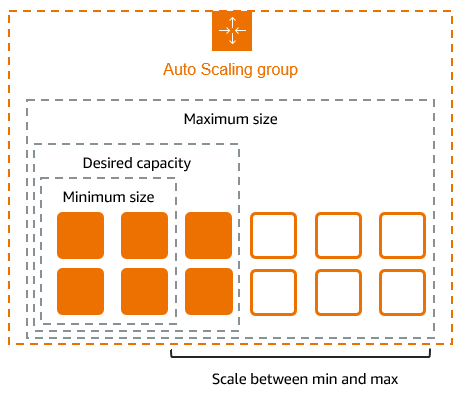
To create a time-based scaling plan, you specify the time at which you want the plan to take effect, and the new minimum, maximum, and desired size you want for that group at that time. At the specified time, Auto Scaling updates the group to set the new values for minimum, maximum, and desired sizes as specified by your scaling plan.
![]() | Note |
|---|---|
If you try to schedule your action in the past, Auto Scaling returns an error message. |
Topics
Use Auto Scaling's PutScheduledUpdateGroupAction to configure scheduled
actions. This call enables you to specify the date and time for each action, along
with the minimum, maximum, and desired size of the group you want to take effect at that
point in time. For example, if you knew you were having a book sale on April 5th, you
would scale up in time for the sale:
# Make sure we scale up in time for the book sale on the 5th % as-put-scheduled-update-group-action my-group –-name “book-scale-up” -- time “2010-04-05T02:00:00Z” –-min 500 –-max 500
Then you would release excess capacity after the sale:
# The sale is over by the 6th, so shut down excess capacity % as-put-scheduled-update-group-action my-group –-name “book-sale-over” -- time “2010-04-06T00:00:00Z” –-min 100 –-max 100
Use DescribeScheduledActions to list all the activity plans attached
to your Auto Scaling group. The listing displays activities that are still waiting to be
executed. Once a scheduled action is completed, it is automatically deleted and, thus, no longer visible in the list of planned actions. Instead, an activity record for the running activity will be
displayed with DescribeScalingActivities.
% as-describe-scheduled-actions my-group NAME TIME MIN MAX DESIRED wii-scale-up 2010-04-05T02:00:00Z 200 200 wii-sale-over 2010-04-06T00:00:00Z 100 100
Use PutScheduledUpdateGroupAction to update an Auto Scaling group's
scheduled action. Make a request with this Auto Scaling API action with a
preexisting scheduled action plan name to overwrite the existing plan with any new values
you specify for minimum, maximum, and desired group size.
Use the SuspendProcesses action to suspend an Auto Scaling
group's scheduled action. This action doesn't delete your scheduled actions.
Make a request with this Auto Scaling API action with the name of the scheduled action
plan you want deleted.
% as-suspend-processes my-group
Use the DeleteScheduledAction action to delete an Auto Scaling
group's scheduled action. Make a request with this Auto Scaling API action with the
name of the scheduled action you want to delete.
![]() | Note |
|---|---|
Scheduled actions are automatically deleted when they are executed. |
You can determine whether instances were launched due to a scheduled action by examining the Cause field returned by DescribeAutoScalingActivities. Activities launched as a direct result of a scheduled action will have a reference to the specific action name in the cause field of the corresponding scaling activity. An example cause would be:
Cause => “At 2010-03-24T01:23:17Z scheduled action scale-up-come-morning set group desired capacity changing the minimum capacity from 100 to 200. At 2010-03-24T01:24:12Z an instance was started in response to a difference between desired and actual capacity, increasing the capacity from 100 to 200.”
Auto Scaling guarantees execution order for scheduled actions within the same group, but not for scheduled actions across groups.
A scheduled action generally executes within seconds. However, the action may be delayed up to two minutes from the scheduled start time. Because Auto Scaling executes actions within an Auto Scaling group in the order they are specified, scheduled actions with scheduled start times close to each other may take longer to execute.
You can schedule a scheduled action for up to a month in the future.
You can create a maximum of 125 scheduled actions per Auto Scaling group. This allows scaling four times a day for a 31-day month for each Auto Scaling group.
A scheduled action must have a unique time value. If you attempt to schedule an activity at a time when another existing activity is already scheduled, the call will be rejected with an error message noting the conflict.