Amazon Virtual Private Cloud
User Guide (API Version 2011-07-15)
Print this pageEmail this pageGo to the ForumsView the PDFShare this page on TwitterShare this page on FacebookBookmark this page on DeliciousSubmit this page to RedditSubmit this page to DiggDid this page help you?  Yes  No   Tell us about it...

Scenario 4: VPC with a Private Subnet Only and Hardware VPN Access

Scenario 4: Wizard icon

We recommend this scenario if you want extend your data center into the cloud and leverage Amazon's elasticity without exposing your network to the Internet. This scenario includes a VPN connection from your home network to your VPC, and no Internet gateway. This is the basic layout that Amazon VPC has supported since the initial release of the service.

[Important]Important

For this scenario, your network administrator needs the Amazon Virtual Private Cloud Network Administrator Guide in order to configure the Amazon VPC customer gateway on your side of the VPN connection.

Basic Layout

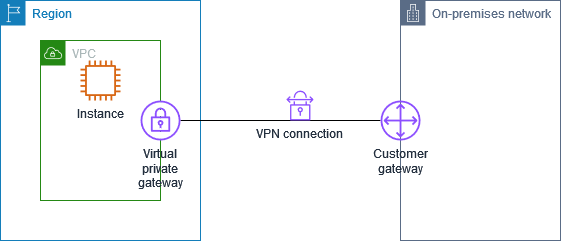
The following diagram shows the basic layout of your VPC in this scenario. The big white cloud is your VPC (your isolated portion of the AWS cloud). You have a virtual private gateway that enables the VPC to communicate with your home network over an IPsec VPN tunnel. The circle containing an R represents your VPC's built-in routing function. The VPC has one subnet. The table following the diagram gives additional details about the VPC and its layout for this scenario.

[Tip]Tip

The AWS Management Console has a wizard In the Amazon VPC console to help you implement this scenario. For more information, see Implementing the Scenario.

Scenario 4: VPC with Only a Virtual Private Gateway

A size /16 VPC (e.g., 10.0.0.0/16), which means 65,536 private (RFC 1918) IP addresses.

For information about CIDR notation and what the "/16" means, go to the Wikipedia article about Classless Inter-Domain Routing.

A VPN between your VPC and home network.

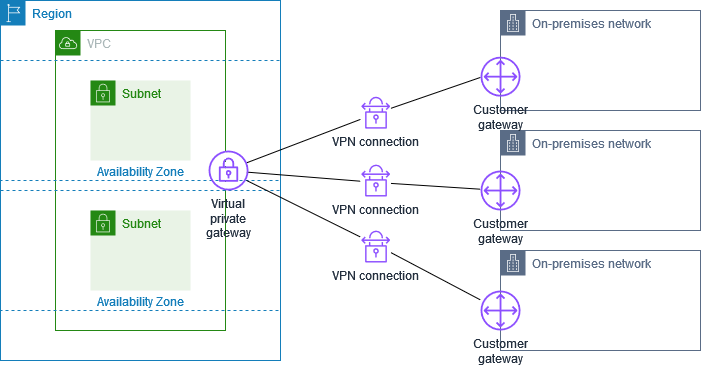
The entire VPN setup consists of a customer gateway, virtual private gateway, VPN attachment (connecting the virtual private gateway to the VPC), and a VPN connection. For this scenario, we refer to the VPN setup generally as your virtual private gateway or VPN connection. For more information about your VPN connection, see Adding a Hardware Virtual Private Gateway to Your VPC.

To enable the VPN connection, you must have an appliance (e.g., router) in your home network that acts as the anchor on your side of the connection (for more information, go to Amazon Virtual Private Cloud Network Administrator Guide.

A size /24 subnet (e.g., 10.0.1.0/24), which means 256 private IP addresses. In the diagram, the subnet contains generic servers. Each has a private IP address (e.g., 10.0.1.5).

You're going to set up routing in the VPC so that the subnet can send traffic only to your home network over the virtual private gateway (see Routing). Therefore, the subnet is labeled as VPN-only in the diagram.

The instances in your VPC can't reach the Internet directly; any Internet-bound traffic must traverse the virtual private gateway to your home network first, where the traffic is then subject to your firewall and corporate security policies. If the instances send any AWS-bound traffic (e.g., requests to the Amazon S3 or Amazon EC2 APIs), the requests must go over the virtual private gateway to your home network and then egress to the Internet before reaching AWS.

Routing

Your VPC has an implied router (shown in the following diagram as an R in a circle), as well as a modifiable main route table. You can also create other route tables to use in your VPC. By default, each table has a local route that enables instances in your VPC to talk to each other.

The following diagram and table describe the main route table and routes you need to set up in this scenario.

Scenario 4: Routing

The VPC automatically comes with a main route table. Any subnet not explicitly associated with another route table uses the main route table. For this scenario, you update the main route table with a route that sends traffic from the VPN-only subnet to the virtual private gateway (the flow of traffic is indicated by the dotted line adjacent to the table). You don't explicitly associate the subnet with any route table, so it implicitly uses the routes in the main route table.

The following table shows what the main route table looks like for this scenario. The first row covers the local routing in the VPC (i.e., allows the instances in the VPC to communicate with each other).

Main Route Table

The first row provides local routing within the VPC. The second row sends all the subnet traffic over the virtual private gateway, which is specified by its AWS-assigned identifier (e.g., vgw-xxxxxxxx).

DestinationTarget

10.0.0.0/16

local

0.0.0.0/0

vgw-xxxxxxxx

[Note]Note

If you use the wizard in the AWS Management Console to set up your VPC, the wizard automatically updates the main route table with the route between the subnet and the virtual private gateway. Otherwise, you must update the main route table yourself.

Any AWS-bound traffic from the subnet (e.g., going to the Amazon EC2 or Amazon S3 API endpoints) is routed to the virtual private gateway. The traffic must egress your home network to the Internet, so you're charged for both the data transfer across the virtual private gateway, and the Internet data transfer costs to access your AWS resources.
Security

AWS provides two ways for you to control security in your VPC: security groups and network ACLs. They both enable you to control what traffic goes in and out of your instances, but security groups work at the instance level, and network ACLs work at the subnet level. Security groups alone will suffice for many VPC users. However, some users might want to use both security groups and network ACLs to take advantage of the additional layer of security that network ACLs provide. For more information about security groups and network ACLs and how they differ, see Security in Your VPC.

[Important]Important

Security groups are a basic Amazon EC2 concept. However, security groups in a VPC have different capabilities than security groups in EC2 (see EC2 vs. VPC Security Groups).

Security Groups

For scenario 4, you use only the default security group that comes with your VPC. Its initial settings are to deny all inbound traffic, allow all outbound traffic, and allow all traffic between the instances in the group. We recommend you change the default security group's rules to allow only inbound SSH traffic (for Linux/UNIX instances) and Remote Desktop traffic (for Windows instances) from your home network.

The following figure shows the default security group as a circle. The figure has a corresponding table that lists the recommended inbound and outbound rules to use with the default security group and what they do.

Scenario 4: Default security group

Default Security Group

Inbound
Source Protocol Port Range Comments

Private IP address range of your home network (e.g., 172.16.0.0/8)

TCP

22

Allow inbound SSH traffic to Linux/UNIX instances from your home network

Private IP address range of your home network (e.g., 172.16.0.0/8)

TCP

3389

Allow inbound RDP traffic to Windows instances from your home network

Outbound

Destination Protocol Port Range Comments

0.0.0.0/0

All

All

Allow all outbound traffic from the instances


[Note]Note

The default security group automatically allows its instances to talk to each other, so you don't have to add a rule to the group to specifically allow that. For groups other than the default security group, you must add that type of rule if you want the instances in the group to communicate with each other.

Implementing the Scenario

This section walks you through the process of implementing Scenario 4. The following figure and table show the tasks required to implement the scenario.

[Tip]Tip

Three of the tasks are automatically handled for you if you use the wizard in the AWS Management Console. The following sections describe how to use the wizard, and how to do all the tasks manually.

Scenario 4: Basic Implementation Process

Task 1: Prepare for the VPN Connection

In scenario 4, you set up a VPN connection between your home network and your VPC. The connection requires an appliance onsite (e.g., router) to act as your customer gateway. You need help from a network administrator in your organization to:

  • Determine the appliance that will be your customer gateway

  • Provide you the Internet-routable IP address for the customer gateway's external interface (the address must be static and can't be behind a device performing network address translation (NAT))

For more information about the requirements for your customer gateway, go to the Amazon Virtual Private Cloud Network Administrator Guide.

If you want to use the wizard to set up your VPC, see Use the Wizard for Scenario 4. Otherwise, see Task 2: Create the VPC and Subnet to perform the process manually.

Use the Wizard for Scenario 4

You can have Amazon VPC complete tasks 2-4 for you by using the wizard in the AWS Management Console. This procedure assumes you don't already have a VPC, and that you have the IP address for your customer gateway (see the preceding section).

To use the wizard

  1. Open the Amazon VPC console at https://console.aws.amazon.com/vpc/.

  2. In the Navigation pane, click VPC Dashboard.

  3. On the VPC Dashboard, locate the Your Virtual Private Cloud area and click Get started creating a VPC.

    Launch the wizard

    The wizard opens and displays a page where you can select one of four options.

  4. Select VPC with a Private Subnet Only and Hardware VPN Access and click Continue.

    Choose option 4 in the wizard

    A dialog box opens with a field for your customer gateway's IP address.

    Enter customer gateway's IP address
  5. Enter your customer gateway's IP address and click Continue.

    A confirmation page is displayed showing the CIDR blocks we use for the VPC and subnet. It also shows the IP address that you just provided for the customer gateway, as well as the instance hardware tenancy of the VPC. You can change any of these values if you want.

    VPC Wizard configuration summary
  6. Make any changes you want and click Create VPC.

    The wizard begins to create your VPC, subnet, and VPN connection. It also updates the main route table and adds routes. When the wizard is done, a confirmation dialog box is displayed with a button for downloading the configuration for your customer gateway.

    Case 4: Finish the wizard
  7. Click Download Configuration.

  8. In the Download Configuration dialog box, select the customer gateway's vendor, platform, and software version, and then click Yes, Download.

    Configuration download dialog
  9. Save the text file containing the VPN configuration and give it to the network administrator along with this guide: Amazon Virtual Private Cloud Network Administrator Guide. The VPN won't work until the network administrator configures the customer gateway.

After the wizard completes, you're partway done. The next task is to update the default security group. For more information, see Task 5: Update the Default Security Group).

Note that the next few sections show how to manually do tasks that the wizard already completed for you.

Task 2: Create the VPC and Subnet

If you don't use the wizard in the console, you can manually create the VPC and subnet yourself. This section shows you how.

To create your VPC and subnet

  1. Open the Amazon VPC console at https://console.aws.amazon.com/vpc/.

  2. In the Navigation pane, click Your VPCs, and then click Create VPC.

  3. In the Create VPC dialog box, enter the CIDR range you want for your VPC (e.g., 10.0.0.0/16), and then click Yes, Create.

    [Tip]Tip

    For information about choosing the CIDR range for your VPC, see VPC Sizing.

    The VPC is created and appears on the Your VPCs page. Notice that it has an ID (e.g., vpc-xxxxxxxx).

  4. In the Navigation pane, click Subnets.

  5. Click Create Subnet.

  6. In the Create Subnet dialog box, select the VPC and Availability Zone, enter the CIDR range you want for your subnet (e.g., 10.0.1.0/24), and then click Yes, Create.

    The subnet is created and appears on the Subnets page. Notice that it has an ID (e.g., subnet-xxxxxxxx). The page also shows the number of available IP addresses in the subnet, the route table associated with the subnet, and the network ACL associated with the subnet. The subnet uses the main route table and default network ACL by default.

You've got your VPC and subnet now.

Task 3: Set Up the VPN Connection

If you don't use the wizard in the console, you can manually set up the VPN connection yourself. This section shows you how.

To set up the VPN connection

  1. Open the Amazon VPC console at https://console.aws.amazon.com/vpc/.

  2. In the Navigation pane, click VPC Dashboard.

  3. In the Your VPN Connections area of the page, click Create (if this is your first VPN) or click Add VPN Connection.

    Set up the VPN connection
  4. In the Add VPN Connection dialog box, enter the IP address for your customer gateway (e.g., 198.0.2.1), and then click Yes, Create.

    We create your customer gateway and your virtual private gateway, attach the virtual private gateway to the VPC, and create a VPN connection. When the wizard is done, a confirmation dialog box is displayed with a button for downloading the configuration for your customer gateway.

    Download VPN Connection Configuration
  5. Click Download Configuration.

  6. In the Download Configuration dialog box, select the customer gateway's vendor, platform, and software version, and then click Yes, Download.

    Configuration download dialog
  7. Save the text file contain and give it to the network administrator along with this guide: Amazon Virtual Private Cloud Network Administrator Guide.

You now have a customer gateway, a virtual private gateway attached to your VPC, and a VPN connection. However, the VPN won't work until your network administrator configures the customer gateway. Also, no route table refers to the gateway yet, so no traffic can flow to the gateway. Move on to the next section to set up routing for the VPN-only subnet.

Task 4: Add a Route to the Main Route Table

If you don't use the wizard in the console, you can manually add the required route to the main route table yourself. This section shows you how.

To update the main route table

  1. Open the Amazon VPC console at https://console.aws.amazon.com/vpc/.

  2. In the Navigation pane, click Route Tables.

    Your VPC's route tables are listed.

  3. In the list of route tables, select the check box for the main route table.

  4. In the lower pane, in the Routes tab, enter 0.0.0.0/0 in the Destination field, and select the virtual private gateway's ID in the Target drop-down list, and click Add.

    Add route to main table for the virtual private gateway

The VPC's main route table now includes the new route. The route enables traffic to flow between the subnet and the virtual private gateway. If you click the Associations tab (next to the Routes tab for the main route table), you can see which subnets are using the main route table. Your VPC's subnet is listed there because you haven't explicitly associated your subnet to any route table.

Task 5: Update the Default Security Group

For this scenario, you update the default security group with new inbound rules that allow SSH and Remote Desktop (RDP) access from your home network. Reminder: the initial settings of the default security group block all inbound traffic, allow all outbound traffic, and allow all instances in the group to talk to each other.

To update the rules for the default security group

  1. Open the Amazon VPC console at https://console.aws.amazon.com/vpc/.

  2. In the Navigation pane, click Security Groups, and then select the check box for the VPC's default security group.

  3. In the lower pane, add a rule for inbound SSH access to the group from your home network:

    1. On the Inbound tab, select SSH from the Create a new rule drop-down list.

    2. In the Source field, enter your home network's private IP address range (e.g., 172.16.0.0/8).

    3. Click Add Rule.

      The rule is added to the Inbound tab. However, the rule isn't applied to the group until you click Apply Rule Changes (which you'll do after you've added all the inbound rules).

      Security group: Add inbound SSH access
  4. Add a rule for inbound RDP access to the group from your home network:

    1. On the Inbound tab, select RDP from the Create a new rule drop-down list.

    2. In the Source field, enter your home network's private IP address range (e.g., 172.16.0.0/8).

    3. Click Add Rule.

      The rule is added to the Inbound tab.

  5. Click Apply Rule Changes.

    Security group: Apply your rule changes

    The new inbound rules now apply to the default security group.

The default security group now allows SSH and RDP access from your home network to the instances. Move on to the next section to launch instances into the subnet.

Task 6: Launch Instances into the Subnet

After your network administrator has configured your customer gateway, you can launch instances into your VPC. If you haven't launched instances before, use the following procedure. If you're already familiar with launching Amazon EC2 instances outside a VPC, then you already know most of what you need to know. You just need to specify the VPC and subnet when launching the instance.

To launch an instance

  1. Start the launch wizard:

    1. Open the Amazon EC2 console at https://console.aws.amazon.com/ec2/.

    2. Click Launch Instance to start the Request Instances Wizard.

      Launch instance start
    3. On the Create a New Instance screen, select Classic Wizard, and then click Continue.

      Launch Wizard Options
  2. Select an AMI from one of the tabs. If you don't have a particular AMI you want to launch, select either the Basic 32-bit Amazon Linux AMI, or the Getting Started on Microsoft Windows Server 2008 AMI on the Quick Start tab.

    AMI list

    After you select an AMI, the wizard steps to the Instance Details page. This is where you control settings such as the number and size of instances to launch, and which subnet to launch the instance in.

  3. Select the Launch Instances Into Your Virtual Private Cloud option, and select the subnet you want to launch the instance in. Keep the other default settings on this page and click Continue.

    The wizard steps to the next page for instance details.

  4. The default settings on this page of the wizard and the next page are what we want, so just click Continue on each page.

  5. Create a key pair:

    A key pair is a security credential similar to a password, which you use to securely connect to your instance once it's running. If you're new to Amazon EC2 and haven't created any key pairs yet, when the wizard displays the Create Key Pair page, the Create a new Key Pair button is selected by default. It's assumed you'll want a new key pair.

    [Tip]Tip

    If you're already familiar with Amazon EC2 and have an SSH key pair already, you don't need to create a new one now. You can just select one of your existing key pairs instead.

    1. On the Create Key Pair page, enter a name for your key pair (e.g., GSG_Keypair). This is the name of the private key file associated with the pair (with a .pem extension).

      Create a key pair
    2. Click Create & Download your Key Pair.

      You're prompted to save the private key from the key pair to your system.

    3. Save the private key in a safe place on your system. Note the location because you'll need to use the key soon to connect to the instance.

  6. On the Configure Firewall page of the wizard, select the default security group and click Continue.

    After you configure the firewall, the wizard steps to the Review page where you can review the settings and launch the instance.

  7. Review your settings and launch the instance:

    1. Click Launch.

      A confirmation page is displayed to let you know your instance is launching.

    2. Click Close to close the confirmation page, and then click Instances in the navigation pane to view your instance's status. It takes a short time for an instance to launch. The instance's status is pending while it's launching. After a short period, your instance's status switches to running. You can click Refresh to refresh the display.

You now have an instance running in your VPC. You can test the connectivity to the instance by pinging it from your home network. For more information, see How to Test the End-to-End Connectivity of Your Instance.

You can now use SSH or Remote Desktop to connect to your instance in the VPC. For instructions on how to connect to a Linux/UNIX instance, go to Connect to Your Linux/UNIX Instance in the Amazon Elastic Compute Cloud Getting Started Guide. For instructions on how to connect to a Windows instance, go to Connect to Your Windows Instance.

Task 7: Update DHCP Options

In scenario 4, you need a DNS server that enables your VPN-only subnet to communicate with servers in your home network. You must create a new set of DHCP options that includes your DNS server and then configure the VPC to use that set of options.

To update the DHCP options

  1. Open the Amazon VPC console at https://console.aws.amazon.com/vpc/.

  2. In the Navigation pane, click DHCP Options Sets.

  3. Click Create DHCP Options Set.

  4. In the Create DHCP Options Set dialog box, in the domain-name-servers box, enter the address of your DNS server. In this example, your DNS server is 192.0.2.1.

    Create new DHCP options with your own DNS server
  5. Click Yes, Create.

    The new set of DHCP options is created.

    Both sets of DHCP options for scenario 4
    [Note]Note

    Your VPC automatically has a set of DHCP options with domain-name-servers=AmazonProvidedDNS. This is a DNS server that Amazon provides to enable any public subnets in your VPC to communicate with the Internet over an Internet gateway. Scenario 4 doesn't have any public subnets, so you don't need this set of DHCP options.

  6. Write down the ID of the new set of options you just created.

  7. In the Navigation pane, click Your VPCs.

  8. Select the VPC and click Change DHCP Options Set.

  9. In the Change DHCP Options Set dialog box, select the ID of the new set of options and click Yes, Change.

The VPC now uses this new set of DHCP options and therefore has access to your corporate DNS server.

[Note]Note

After you associate a new set of options with the VPC, any existing instances and all new instances that you launch in that VPC use the options. You don't need to restart or relaunch the instances. They automatically pick up the changes within a few hours, depending on how frequently the instance renews its DHCP lease. If you want, you can explicitly renew the lease using the operating system on the instance.

Congratulations! You've implemented scenario 4. You've got a VPC with a VPN-only subnet that can communicate only with your home network.

If in the future you want to add an Internet gateway to your VPC and a public subnet, you can. Scenario 3 covers that setup. See Scenario 3: VPC with Public and Private Subnets and Hardware VPN Access.