Amazon Relational Database Service
User Guide (API Version 2012-01-15)
Print this pageEmail this pageGo to the ForumsView the PDFShare this page on TwitterShare this page on FacebookBookmark this page on DeliciousSubmit this page to RedditSubmit this page to DiggDid this page help you?  Yes  No   Tell us about it...

Working with DB Security Groups

A DB Security Group allows you to control access to your DB Instances. A DB Security Group acts like a firewall controlling network access to your DB Instance. By default, network access is disabled for a new DB Security Group; you must specifically authorize access to an IP range for a new DB Security Group after the DB Security Group is created.

Creating a DB Security Group

To create a DB Security Group, you need to provide a name and a description.

In this example, you create a new DB Security Group.

AWS Management Console

To create a DB Security Group

  1. Sign in to the AWS Management Console and open the Amazon RDS console at https://console.aws.amazon.com/rds/.

  2. Click DB Security Groups in the Navigation list on the left side of the window.

  3. Click the Create DB Security Group button.

    The Create DB Security Group window appears.

  4. Type the name of the new DB Security Group in the DB Security Group text box.

  5. Type a description for the new DB Security Group in the Description text box.

  6. Click the OK button.

CLI

To create a DB Security Group

  • Use the command rds-create-db-security-group with the following parameters:

    PROMPT>rds-create-db-security-group mydbsecuritygroup -d "My new security group"

API

To create a DB Security Group

  • Call CreateDBSecurityGroup with the following parameters:

    • DBSecurityGroupName = mydbsecuritygroup

    • Description = "My new security group"

    Example

    https://rds.amazonaws.com/
    	?Action=CreateDBSecurityGroup
    	&DBParameterGroupName=mydbsecuritygroup
    	&Description=My%20new%20db%20security%20group
    	&Version=2012-01-15						
    	&SignatureVersion=2
    	&SignatureMethod=HmacSHA256
    	&Timestamp=2012-01-20T22%3A06%3A23.624Z
    	&AWSAccessKeyId=<AWS Access Key ID>
    	&Signature=<Signature>
    							

Listing Available DB Security Groups

You can list which DB Security Groups have been created for your AWS account.

In this example, you list the available DB Security Groups for your AWS account.

AWS Management Console

To list all available DB Security Groups for an AWS account

  1. Sign in to the AWS Management Console and open the Amazon RDS console at https://console.aws.amazon.com/rds/.

  2. Click DB Security Groups in the Navigation list on the left side of the window.

    The available DB Security Groups appear in the My DB Security Groups list.

CLI

To list all available DB Security Groups for an AWS account

  • Use the command rds-describe-db-security-groups to list all available DB Security Groups for your AWS account.

    PROMPT>rds-describe-db-security-groups

API

To list all available DB Security Groups for an AWS account

  • Call DescribeDBSecurityGroups with no parameters.

    Example

    https://rds.amazonaws.com/
    	?Action=DescribeDBSecurityGroups
    	&MaxRecords=100
    	&Version=2009-10-16
    	&SignatureVersion=2
    	&SignatureMethod=HmacSHA256
    	&AWSAccessKeyId=<AWS Access Key ID>
    	&Signature=<Signature>
    							

Viewing a DB Security Group

You can view detailed information about your DB Security Group to see what IP ranges have been authorized.

In this example, you view the properties of a DB Security Group.

AWS Management Console

To view properties of a specific DB Security Group

  1. Sign in to the AWS Management Console and open the Amazon RDS console at https://console.aws.amazon.com/rds/.

  2. Click DB Security Groups in the Navigation list on the left side of the window.

    The available DB Security Groups appear in the My DB Security Groups list.

  3. Select the Description tab from the information panel at the bottom of the window.

    The list of authorizations defined for the DB Security Group appears in this tab.

CLI

To view properties of a specific DB Security Group

  • Use the rds-describe-db-security-groups to view a DB Security Group.

    PROMPT>rds-describe-db-security-groups mydbsecuritygroup

API

To view properties of a specific DB Security Group

  • Call DescribeDBSecurityGroups with the following parameters:

    • DBSecurityGroupName = mydbsecuritygroup

    Example

    					
    https://rds.amazonaws.com/
    	?Action=DescribeDBSecurityGroups
    	&DBParameterGroupName=mydbsecuritygroup
    	&Version=2009-10-16
    	&SignatureVersion=2
    	&SignatureMethod=HmacSHA256
    	&Timestamp=2009-10-16T22%3A23%3A07.107Z
    	&AWSAccessKeyId=<AWS Access Key ID>
    	&Signature=<Signature>
    							

Authorizing Network Access to a DB Security Group from an IP Range

By default, network access is turned off to your DB Instances. If you want your applications to access your DB Instance, you can set your DB Security Group to allow access from specific EC2 Security Groups or CIDR IP ranges. This process is called ingress. Once ingress is configured for a DB Security Group, the same ingress rules apply to all DB Instances associated with that DB Security Group.

[Caution]Caution

To avoid inadvertently granting access to your DB Instances, be sure to understand how CIDR ranges work. For more information about CIDR ranges, go to the Wikipedia Tutorial.

In this example, you configure a DB Security Group with an ingress rule for a CIDR IP range.

AWS Management Console

configure a DB Security Group with an ingress rule for a CIDR IP range

  1. Sign in to the AWS Management Console and open the Amazon RDS console at https://console.aws.amazon.com/rds/.

  2. Select DB Security Groups from the navigation pane on the left side of the console window.

  3. In the My DB Security Groups list, select the check box next to the DB Security Group that you want to authorize.

  4. On the Description tab at the bottom of the window, select CIDR/IP from the Connection Type drop-down list, type the CIDR range for the ingress rule you would like to add to this DB Security Group into the CIDR text box, and click the Add button.

    [Tip]Tip

    The AWS Management Console displays the CIDR IP to use just below the CIDR text field if you want to authorize only the machine you are currently on.

    [Note]Note

    The status of the ingress rule will be "authorizing" until the new ingress rule has been applied to all DB Instances that are associated with the DB Security Group that was just modified. After the ingress rule has been successfully applied, the status will change to "authorized".

CLI

To configure a DB Security Group with an ingress rule for a CIDR IP range

  • Use the command rds-authorize-db-security-group-ingress to modify a DB Security Group.

    PROMPT>rds-authorize-db-security-group-ingress mydbsecuritygroup --cidr-ip 192.168.1.10/27 
    						

    The command should produce output similar to the following:

    SECGROUP  mydbsecuritygroup  My new DBSecurityGroup
    IP-RANGE  192.168.1.10/27  authorizing
    						

API

To configure a DB Security Group with an ingress rule for a CIDR IP range

  • Call AuthorizeDBSecurityGroupIngress with the following parameters:

    • DBSecurityGroupName = mydbsecuritygroup

    • CIDRIP = 192.168.1.10/27

    Example

    https://rds.amazonaws.com/
    	?CIDRIP=192.168.1.10%2F27
    	&DBSecurityGroupName=mydbsecuritygroup
    	&Version=2009-10-16
    	&Action=AuthorizeDBSecurityGroupIngress
    	&SignatureVersion=2
    	&SignatureMethod=HmacSHA256
    	&Timestamp=2009-10-22T17%3A10%3A50.274Z
    	&AWSAccessKeyId=<AWS Access Key ID>
    	&Signature=<Signature>
     

Authorizing Network Access to a DB Instance from an EC2 Instance

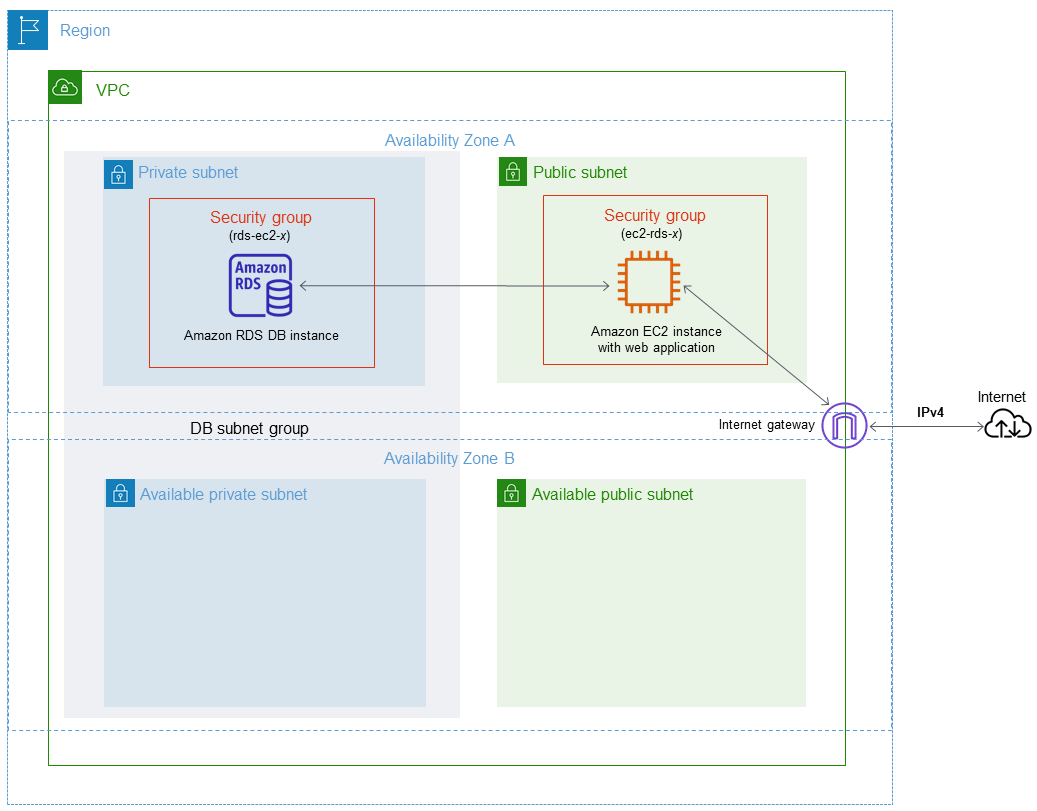
If you want to access your DB Instance from an EC2 instance, you must configure your DB Instance's DB Security Group with an ingress rule that allows traffic from the EC2 Instance's EC2 Security Group. In this example, you add an ingress rule to a DB Security Group for an EC2 Security Group.

[Important]Important
  • Adding an ingress rule to a DB Security Group for an EC2 Security Group only grants access to your DB Instances from EC2 Instances belonging to that EC2 Security Group.

  • You can't authorize an EC2 security group that is in a different AWS Region than your DB Instance. You can authorize an IP range, or specify an EC2 security group in the same region that refers to IP address in another region.

AWS Management Console

To grant access to an EC2 security group

  1. Sign in to the AWS Management Console and open the Amazon RDS console at https://console.aws.amazon.com/rds/.

  2. Select DB Security Groups from the navigation pane on the left side of the console window.

  3. In the My DB Security Groups list, select the check box next to the DB Security Group named default.

  4. On the Description tab at the bottom of the window, select EC2 Security Group from the Connection Type drop-down list.

  5. Type the name of your EC2 Security Group into the Security Group text box.

  6. Type your AWS Account ID into the AWS Account ID text box.

    [Note]Note

    You can find your AWS Account ID on the AWS Security Credentials page.

  7. Click the Add button.

    [Note]Note

    The status of the ingress rule will be "authorizing" until the new ingress rule has been applied to all DB Instances that are associated with the DB Security Group that was just modified. After the ingress rule has been successfully applied, the status will change to "authorized".

CLI

To grant access to an EC2 security group

  • Use the command rds-authorize-db-security-group-ingress to grant access to an EC2 security group

    PROMPT>rds-authorize-db-security-group-ingress default  --ec2-security-group-name myec2group --ec2-security-group-owner-id 987654321021 
    						

    The command should produce output similar to the following:

    SECGROUP  Name     Description 
    SECGROUP  default  default
          EC2-SECGROUP  myec2group  987654321021  authorizing      
    						

API

To authorize network access to an EC2 security group

  • Call AuthorizeDBSecurityGroupIngress with the following parameters:

    • EC2Security­GroupName = myec2group

    • EC2SecurityGroupOwnerId = 987654321021

    Example

    https://rds.amazonaws.com/
    	?Action=AuthorizeDBSecurityGroupIngress
    	&EC2SecurityGroupOwnerId=987654321021
    	&EC2Security­GroupName=myec2group
    	&Version=2009-10-16
    	&SignatureVersion=2
    	&SignatureMethod=HmacSHA256
    	&Timestamp=2009-10-22T17%3A10%3A50.274Z
    	&AWSAccessKeyId=<AWS Access Key ID>
    	&Signature=<Signature>
     

Revoking Network Access to a DB Instance from an IP Range

You can easily revoke network access from a CIDR IP range to DB Instances belonging to a DB Security Group by revoking the associated CIDR IP ingress rule.

In this example, you revoke an ingress rule for a CIDR IP on a DB Security Group.

AWS Management Console

To revoke an ingress rule for a CIDR IP range on a DB Security Group.

  1. Sign in to the AWS Management Console and open the Amazon RDS console at https://console.aws.amazon.com/rds/.

  2. Select DB Security Groups from the navigation pane on the left side of the console window.

  3. In the My DB Security Groups list, select the check box next to the DB Security Group that has the ingress rule you want to revoke.

  4. In the Description tab under the Actions column next to the ingress rule you would like to revoke, click the Remove button.

    [Note]Note

    The status of the ingress rule will be "revoking" until the ingress rule has been removed from all DB Instances that are associated with the DB Security Group that was just changed. After the ingress rule has been successfully removed, the ingress rule will be removed from the DB Security Group.

CLI

To revoke an ingress rule for a CIDR IP range on a DB Security Group

  • Use the command rds-revoke-db-security-group-ingress to modify a DB Security Group.

    PROMPT>rds-revoke-db-security-group-ingress mydbsecuritygroup --cidr-ip 192.168.1.1/27 
    						

    The command should produce output similar to the following:

    SECGROUP  mydbsecuritygroup  My new DBSecurityGroup
      IP-RANGE  192.168.1.1/27  revoking
    						

API

To revoke an ingress rule for a CIDR IP range on a DB Security Group

  • Call RevokeDBSecurityGroupIngress with the following parameters:

    • DBSecurityGroupName = mydbsecuritygroup

    • CIDRIP = 192.168.1.10/27

    Example

    https://rds.amazonaws.com/
    	?Action=RevokeDBSecurityGroupIngress
    	&DBSecurityGroupName=mydbsecuritygroup
    	&CIDRIP=192.168.1.10%2F27
    	&Version=2009-10-16
    	&SignatureVersion=2&SignatureMethod=HmacSHA256
    	&Timestamp=2009-10-22T22%3A32%3A12.515Z
    	&AWSAccessKeyId=<AWS Access Key ID>
    	&Signature=<Signature>
    						 

Related Topics