Access Logs

Topics

Amazon CloudFront provides optional log files with information about end user access to your objects. This section describes how to enable and disable logging, the content of log files, and how AWS charges you if you decide to use logging.

[Important]Important

Access logs are available only with basic distributions, and not with streaming distributions.

Overview

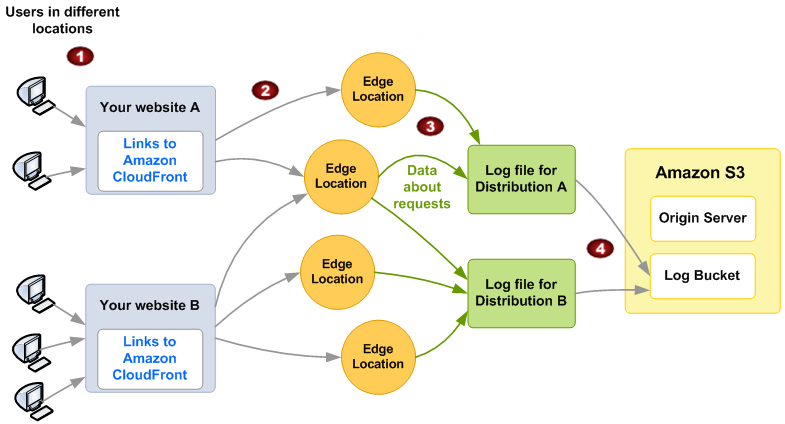
You can enable CloudFront to deliver access logs per distribution to an Amazon S3 bucket of your choice. The following figure and table describe the basic process for access logs.

Basic flow for access logs

Process for Access Logs

Your end users use your application or web site.

In this graphic, you have two different web sites, A and B, each using a different CloudFront distribution (Distribution A and Distribution B).

Your end users send requests for content, and CloudFront routes each request to the appropriate edge location.

CloudFront writes data about each request to a log file specific to that distribution.

In this graphic, CloudFront writes information about requests related to Distribution A in a log file just for Distribution A, and requests for Distribution B in a log file just for Distribution B.

CloudFront periodically puts the distribution's log file in an Amazon S3 bucket of your choice, and then starts writing a new log file for the distribution.

You can store each distribution's log files in the same bucket or a different one.


Each entry in a log file gives details about a single end user request for an object. You can have multiple distributions' log files delivered to the same bucket. When you enable logging for a particular distribution, you can specify an optional log filename prefix. Log files are delivered to your bucket within 24 hours of the end user's access, and typically sooner than that.

[Important]Important

You should use the logs to understand the nature of the requests for your content, not as a complete accounting of all requests. CloudFront delivers access logs on a best-effort basis. The log record for a particular request might be delivered long after the request was actually processed, or not at all. In rare cases, usage that appears in the AWS usage tracking and billing systems might not appear in CloudFront access logs.

Bucket and File Ownership

You must have Amazon S3 FULL_CONTROL permission for the log file bucket. You have this permission by default if you're the bucket owner. If you're not, the bucket owner must grant your AWS account FULL_CONTROL permission.

When you enable logging, you do it with an API call to the CloudFront control API. Making that API call also automatically calls the Amazon S3 API to update the bucket's ACL to allow read and write permissions for the AWS data feeds account. This account writes the log files to the bucket.

Each log file has its own ACL (separate from the bucket's ACL). The bucket owner has FULL_CONTROL permission for the log files, the distribution owner (if not the bucket owner) has no permission, and the data feeds account has read and write permission.

[Note]Note

Removing the permissions for the data feeds account does not disable logging. If you remove those permissions, but don't disable logging (which you do with the control API), we reinstate those permissions the next time the data feeds account needs to write a log file to your log bucket.

If you disable logging, we don't remove the read/write permissions for the data feeds account on either the bucket or the log files. If you want, you can do that yourself.

How to Turn Logging On and Off

To enable or disable CloudFront access logs, you must use the 2009-12-01 version of the CloudFront control API. Changes you make to the logging configuration take effect within 12 hours.

To turn on logging for a distribution

  • Include a Logging element in the distribution's configuration object (for more information about the object, go to DistributionConfig Complex Type in the Amazon CloudFront API Reference).

When you create a new distribution, you can include the Logging element then (for more information, go to POST Distribution in the Amazon CloudFront API Reference). You can also update an existing distribution's configuration to include the element (for more information, see Updating a Distribution's Configuration). The changes to your distribution's logging configuration take effect within 12 hours.

The Logging element includes two child elements: one for the Amazon S3 bucket to hold the logs, and one for the optional filename prefix of your choice.

[Note]Note

To enable easier listing of keys in a bucket, Amazon S3 users commonly use a prefix along with a slash (/) as a delimiter. CloudFront doesn't allow a prefix to begin with a slash; however, the prefix can end in one. The examples presented here have a slash appended following the prefix.

The following example shows a distribution's configuration with the Logging element.

<DistributionConfig xmlns="http://cloudfront.amazonaws.com/doc/2009-12-01/">
   <Origin>mybucket.s3.amazonaws.com</Origin>
   <CallerReference>20091130090000</CallerReference>
   <Comment>My comments</Comment>
   <Enabled>true</Enabled>
   <Logging>
      <Bucket>mylogs.s3.amazonaws.com</Bucket>
      <Prefix>myprefix/</Prefix>
   </Logging>
</DistributionConfig>

You must specify the Amazon S3 bucket using this format: <bucket name>.s3.amazonaws.com. Do not use the Amazon S3 path style for specifying the bucket, which is s3.amazonaws.com/<bucket name>.

If you don't want to use a filename prefix, include an empty Prefix element, as shown in the following example. CloudFront doesn't substitute a default prefix. However, the XML is invalid if you omit the Prefix element entirely.

<DistributionConfig xmlns="http://cloudfront.amazonaws.com/doc/2009-12-01/">
   <Origin>mybucket.s3.amazonaws.com</Origin>
   <CallerReference>20091130090000</CallerReference>
   <Comment>My comments</Comment>
   <Enabled>true</Enabled>
   <Logging>
      <Bucket>mylogs.s3.amazonaws.com</Bucket>
      <Prefix/>
   </Logging>
</DistributionConfig>

To turn off logging for a distribution

  • Remove the entire Logging element from the distribution's configuration.

    <DistributionConfig xmlns="http://cloudfront.amazonaws.com/doc/2009-12-01/">
       <Origin>mybucket.s3.amazonaws.com</Origin>
       <CallerReference>20091130090000</CallerReference>
       <Comment>My comments</Comment>
       <Enabled>true</Enabled>
    </DistributionConfig>

How to Change the Bucket or Prefix

At any time, you can update a distribution's logging configuration to use a different bucket or filename prefix. When you update the logging configuration, your changes take effect within 12 hours.

[Important]Important

Whenever you update the Logging element, you must provide both the Bucket and Prefix child elements. If you don't have a prefix, the Prefix element will be empty.

To change the bucket or prefix

  1. Get the distribution's current configuration (for more information, go to GET Distribution Config in the Amazon CloudFront API Reference).

  2. Update the Logging element with your desired changes.

  3. Upload the new configuration (for more information, go to PUT Distribution Config in the Amazon CloudFront API Reference).

For more information about updating a distribution's configuration, see Updating a Distribution's Configuration.

File Naming and Timing of File Delivery

The filename follows this format (with the date and hour in UTC):

{Bucket}.s3.amazonaws.com/{Optional Prefix You Choose}{Distribution ID}.{YYYY}-{MM}-{DD}-{HH}.{Unique ID}.gz

For example, if your bucket name is mylogs, and you name your prefix myprefix/, your filenames look similar to this:

mylogs.s3.amazonaws.com/myprefix/EMLARXS993KSTG8.2009-03-17-20.RT4KCN4SGK9.gz

Log files arrive in your bucket typically once an hour.

Each hour of usage is typically covered in a single log file. CloudFront compresses the file in gzip format before delivering it to your bucket. CloudFront might write multiple files for a given hour of usage. For example, this occurs if the log file contents for the hour exceed 50 MB (uncompressed).

[Note]Note

If a distribution has no end user requests during a particular hour, you don't receive a log file for that hour.

File Format

The log files use the W3C extended log file format (for more information, go to http://www.w3.org/TR/WD-logfile.html).

The files contain information for each record in the following order:

  • Date of the request (in UTC)

  • Time (when the server finished processing the request; in UTC)

  • Edge location that served the request (a variable-length string with a minimum of 3 characters)

  • Bytes served

  • Client IP address (no hostname lookups occur)

  • HTTP access method

  • DNS name (either the CloudFront distribution name or your CNAME, whichever the end user specified in the request)

  • URI stem (e.g., /images/daily-ad.jpg)

  • HTTP status code (e.g., 200)

  • Referrer

  • User agent

[Note]Note

Any query parameters attached to the URI (including ones required for signed URLs) are not included in the log (for information about signed URLs, see Serving Private Content).

Any non-standard characters in the field values are URL encoded (according to RFC 1738; for more information, go to http://www.ietf.org/rfc/rfc1738.txt). These non-standard characters consist of all ASCII codes below 32 and above 127, plus the characters in the following table.

Hexadecimal Value

Character

0x3C

<

0x3E

>

0x22

"

0x23

#

0x25

%

0x7B

{

0x7D

}

0x7C

|

0x5C

\

0x5E

^

0x7E

~

0x5B

[

0x5D

]

0x60

`

0x27

'

0x20

space

The file also contains two header lines: one with the file format version, and another that lists the W3C fields included in each record.

The values are tab separated. The records in a file are not necessarily listed in order by time.

The following is an example log file.

#Version: 1.0
#Fields: date time x-edge-location sc-bytes c-ip cs-method cs(Host) cs-uri-stem sc-status cs(Referer) cs(User-Agent)
02/01/2009 01:13:11 FRA2 182 10.10.10.10 GET d2819bc28.cloudfront.net /view/my/file.html 200 www.displaymyfiles.com Mozilla/4.0%20(compatible;%20MSIE%205.0b1;%20Mac_PowerPC)
02/01/2009 01:13:12 LAX1 2390282 12.12.12.12 GET www.singalong.com /soundtrack/happy.mp3 304 www.unknownsingers.com Mozilla/4.0%20(compatible;%20MSIE%207.0;%20Windows%20NT%205.1) 

Charges for Access Logs

Access logging is an optional feature of CloudFront. There is no extra charge for enabling access logging. However, you accrue the usual Amazon S3 charges for storing and accessing the files (you can delete them at any time).

[Note]Note

With CloudFront logging (unlike with Amazon S3 server access logging), you also accrue Amazon S3 data transfer charges for each log file that CloudFront writes to your bucket.