Regions and Zones
Amazon EC2 is hosted in multiple locations world-wide. These locations are composed of AWS Regions, Availability Zones, Local Zones, AWS Outposts, and Wavelength Zones.
-
Each Region is a separate geographic area.
-
Availability Zones are multiple, isolated locations within each Region.
-
Local Zones provide you the ability to place resources, such as compute and storage, in multiple locations closer to your end users.
-
AWS Outposts brings native AWS services, infrastructure, and operating models to virtually any data center, co-location space, or on-premises facility.
-
Wavelength Zones allow developers to build applications that deliver ultra-low latencies to 5G devices and end users. Wavelength deploys standard AWS compute and storage services to the edge of telecommunication carriers' 5G networks.
AWS operates state-of-the-art, highly available data centers. Although rare, failures can occur that affect the availability of instances that are in the same location. If you host all of your instances in a single location that is affected by a failure, none of your instances would be available.
To help you determine which deployment is best for you, see AWS Wavelength FAQs
Regions
Each Region is designed to be isolated from the other Regions. This achieves the greatest possible fault tolerance and stability.
When you view your resources, you see only the resources that are tied to the Region that you specified. This is because Regions are isolated from each other, and we don't automatically replicate resources across Regions.
When you launch an instance, you must select an AMI that's in the same Region. If the AMI is in another Region, you can copy the AMI to the Region you're using. For more information, see Copy an AMI.
Note that there is a charge for data transfer between Regions. For more information,
see Amazon EC2 Pricing -
Data Transfer
Contents
Available Regions
Your account determines the Regions that are available to you.
-
An AWS account provides multiple Regions so that you can launch Amazon EC2 instances in locations that meet your requirements. For example, you might want to launch instances in Europe to be closer to your European customers or to meet legal requirements.
-
An AWS GovCloud (US-West) account provides access to the AWS GovCloud (US-West) Region and the AWS GovCloud (US-East) Region. For more information, see AWS GovCloud (US)
. -
An Amazon AWS (China) account provides access to the Beijing and Ningxia Regions only. For more information, see Amazon Web Services in China
.
The following table lists the Regions provided by an AWS account. You can't describe or access additional Regions from an AWS account, such as the AWS GovCloud (US) Regions or the China Regions. To use a Region introduced after March 20, 2019, you must enable the Region. For more information, see Specify which AWS Regions your account can use in the AWS Account Management Reference Guide.
| Code | Name | Opt-in status |
|---|---|---|
| us-east-2 | US East (Ohio) | Not required |
| us-east-1 | US East (Virginia) | Not required |
| us-west-1 | US West (N. California) | Not required |
| us-west-2 | US West (Oregon) | Not required |
| af-south-1 | Africa (Cape Town) | Required |
| ap-east-1 | Asia Pacific (Hong Kong) | Required |
| ap-south-2 | Asia Pacific (Hyderabad) | Required |
| ap-southeast-3 | Asia Pacific (Jakarta) | Required |
| ap-southeast-4 | Asia Pacific (Melbourne) | Required |
| ap-south-1 | Asia Pacific (Mumbai) | Not required |
| ap-northeast-3 | Asia Pacific (Osaka) | Not required |
| ap-northeast-2 | Asia Pacific (Seoul) | Not required |
| ap-southeast-1 | Asia Pacific (Singapore) | Not required |
| ap-southeast-2 | Asia Pacific (Sydney) | Not required |
| ap-northeast-1 | Asia Pacific (Tokyo) | Not required |
| ca-central-1 | Canada (Central) | Not required |
| ca-west-1 | Canada West (Calgary) | Required |
| eu-central-1 | Europe (Frankfurt) | Not required |
| eu-west-1 | Europe (Ireland) | Not required |
| eu-west-2 | Europe (London) | Not required |
| eu-south-1 | Europe (Milan) | Required |
| eu-west-3 | Europe (Paris) | Not required |
| eu-south-2 | Europe (Spain) | Required |
| eu-north-1 | Europe (Stockholm) | Not required |
| eu-central-2 | Europe (Zurich) | Required |
| il-central-1 | Israel (Tel Aviv) | Required |
| me-south-1 | Middle East (Bahrain) | Required |
| me-central-1 | Middle East (UAE) | Required |
| sa-east-1 | South America (São Paulo) | Not required |
For more information, see AWS Global
Infrastructure
The number and mapping of Availability Zones per Region may vary between AWS accounts To list the Availability Zones that are available to your account, you can use the Amazon EC2 console or the command line interface. For more information, see Describe your Regions.
Regions and endpoints
When you work with an instance using the command line interface or API actions, you must specify its Regional endpoint. For more information about the Regions and endpoints for Amazon EC2, see Amazon EC2 endpoints and quotas in the Amazon Web Services General Reference.
For more information about endpoints and protocols in AWS GovCloud (US-West), see Service Endpoints in the AWS GovCloud (US) User Guide.
Describe your Regions
You can use the Amazon EC2 console or the command line interface to determine which Regions are available for your account. For more information about these command line interfaces, see Access Amazon EC2.
To find your Regions using the console
Open the Amazon EC2 console at https://console.aws.amazon.com/ec2/
. -
From the navigation bar, choose the Regions selector.
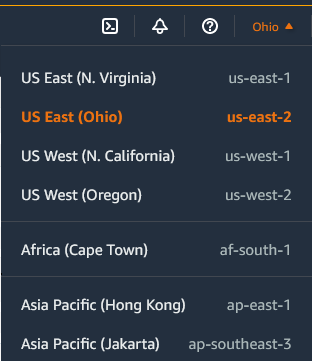
-
Your EC2 resources for the selected Region are displayed on the EC2 Dashboard in the Resources section.
To find your Regions using the AWS CLI
Use the describe-regions command as follows to describe the Regions that are enabled for your account.
aws ec2 describe-regions
To describe all Regions, including any Regions that are disabled for your account,
add the --all-regions option as follows.
aws ec2 describe-regions --all-regions
Get the Region display name
You can use AWS Systems Manager Parameter Store to view the display name of a Region. Each Region has public parameters in the following path.
/aws/service/global-infrastructure/regions/region-code
The public parameters for a Region include the following:
-
/aws/service/global-infrastructure/regions/
region-code/domain -
/aws/service/global-infrastructure/regions/
region-code/geolocationCountry -
/aws/service/global-infrastructure/regions/
region-code/geolocationRegion -
/aws/service/global-infrastructure/regions/
region-code/longName -
/aws/service/global-infrastructure/regions/
region-code/partition
The longName parameter contains the Region display name. The
following get-parameters-by-path command returns the display name of the
af-south-1 Region. It uses the --query option to scope
the output to the name of the Region. You must enclose the query string in single
quotes on Linux. To run this command using the Windows Command Prompt, either omit
the single quotes or change them to double quotes.
The following is example output.
Africa (Cape Town)For more information, see Working with public parameters in the AWS Systems Manager User Guide.
Specify the Region for a resource
Every time you create an Amazon EC2 resource, you can specify the Region for the resource. You can specify the Region for a resource using the AWS Management Console or the command line.
Considerations
Some AWS resources might not be available in all Regions. Ensure that you can create the resources that you need in the desired Regions before you launch an instance.
To specify the Region for a resource using the console
Open the Amazon EC2 console at https://console.aws.amazon.com/ec2/
. -
From the navigation bar, choose the Regions selector and then choose the Region.
To specify the default Region using the command line
You can set the value of an environment variable to the desired Regional
endpoint (for example, https://ec2.us-east-2.amazonaws.com):
-
AWS_DEFAULT_REGION(AWS CLI) -
Set-AWSDefaultRegion(AWS Tools for Windows PowerShell)
Alternatively, you can use the --region (AWS CLI) or
-Region (AWS Tools for Windows PowerShell) command line option with each individual
command. For example, --region us-east-2.
For more information about the endpoints for Amazon EC2, see Amazon EC2 endpoints and quotas in the AWS General Reference.
Availability Zones
Each Region has multiple, isolated locations known as Availability
Zones. The code for Availability Zone is its Region code followed by a
letter identifier. For example, us-east-1a.
When you launch an instance, you select a Region and a virtual private cloud (VPC), and then you can either select a subnet from one of the Availability Zones or let us choose one for you. If you distribute your instances across multiple Availability Zones and one instance fails, you can design your application so that an instance in another Availability Zone can handle requests. You can also use Elastic IP addresses to mask the failure of an instance in one Availability Zone by rapidly remapping the address to an instance in another Availability Zone.
The following diagram illustrates multiple Availability Zones in an AWS Region. Availability Zone A and Availability Zone B each have one subnet, and each subnet has instances. Availability Zone C has no subnets, therefore you can't launch instances into this Availability Zone.
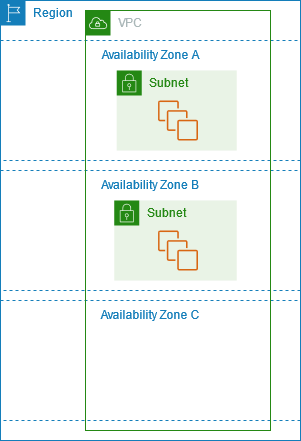
As Availability Zones grow over time, our ability to expand them can become constrained. If this happens, we might restrict you from launching an instance in a constrained Availability Zone unless you already have an instance in that Availability Zone. Eventually, we might also remove the constrained Availability Zone from the list of Availability Zones for new accounts. Therefore, your account might have a different number of available Availability Zones in a Region than another account.
Contents
AZ IDs
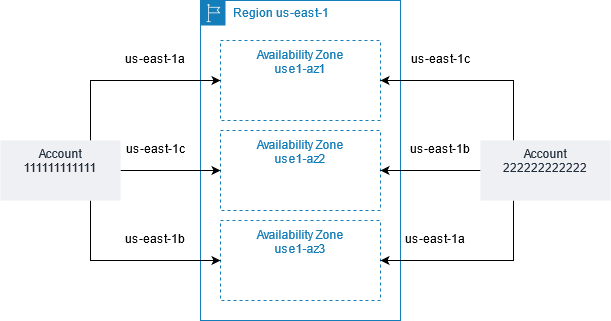
To ensure that resources are distributed across the Availability Zones for a
Region, we independently map Availability Zones to codes for each AWS account
in our oldest Regions. For example, the us-east-1a for
your AWS account might not be the same physical location as the
us-east-1a for another AWS account.
To coordinate Availability Zones across accounts in all Regions even those
that map Availability Zones, use the AZ IDs, which are
unique and consistent identifiers for an Availability Zone. For example,
use1-az1 is an AZ ID for the us-east-1 Region,
and it has the same physical location in every AWS account. You can view
the AZ IDs for your account to determine the physical location of your resources
relative to the resources in another account. For example, if you share a subnet in
the Availability Zone with the AZ ID use1-az2 with another account,
this subnet is available to that account in the Availability Zone whose AZ ID is
also use1-az2.
The following diagram illustrates two accounts with different mappings of Availability Zone code to AZ ID.
Describe your Availability Zones
You can use the Amazon EC2 console or the command line interface to determine which Availability Zones are available for your account. For more information about these command line interfaces, see Access Amazon EC2.
To find your Availability Zones using the console
Open the Amazon EC2 console at https://console.aws.amazon.com/ec2/
. -
From the navigation bar, choose the Regions selector and then choose the Region.
-
On the navigation pane, choose EC2 Dashboard.
-
The Availability Zones are listed in the Service health pane.
To find your Availability Zones using the AWS CLI
-
Use the describe-availability-zones command as follows to describe the Availability Zones within the specified Region that are enabled for your account.
aws ec2 describe-availability-zones --regionregion-name -
Use the describe-availability-zones command as follows to describe the Availability Zones regardless of the opt-in status.
aws ec2 describe-availability-zones --all-availability-zones
Launch instances in an Availability Zone
When you launch an instance, select a Region that puts your instances closer to specific customers, or meets the legal or other requirements that you have. By launching your instances in separate Availability Zones, you can protect your applications from the failure of a single location.
When you launch an instance, you can optionally specify an Availability Zone in the Region that you are using. If you do not specify an Availability Zone, we select an Availability Zone for you. When you launch your initial instances, we recommend that you accept the default Availability Zone, because this allows us to select the best Availability Zone for you based on system health and available capacity. If you launch additional instances, specify an Availability Zone only if your new instances must be close to, or separated from, your running instances.
Migrate an instance to another Availability Zone
If necessary, you can migrate an instance from one Availability Zone to another. For example, if you try to modify the instance type of your instance and we can't launch an instance of the new instance type in the current Availability Zone, you can migrate the instance to an Availability Zone with capacity for the new instance type.
The migration process involves:
-
Creating an AMI from the original instance
-
Launching an instance in the new Availability Zone
-
Updating the configuration of the new instance, as shown in the following procedure
To migrate an instance to another Availability Zone
-
Create an AMI from the instance. The procedure depends on your operating system and the type of root device volume for the instance. For more information, see the documentation that corresponds to your operating system and root device volume:
-
If you need to preserve the private IPv4 address of the instance, you must delete the subnet in the current Availability Zone and then create a subnet in the new Availability Zone with the same IPv4 address range as the original subnet. Note that you must terminate all instances in a subnet before you can delete it. Therefore, you should create AMIs from all of the instances in your subnet so that you can move all instances from the current subnet to the new subnet.
-
Launch an instance from the AMI that you just created, specifying the new Availability Zone or subnet. You can use the same instance type as the original instance, or select a new instance type. For more information, see Launch instances in an Availability Zone.
-
If the original instance has an associated Elastic IP address, associate it with the new instance. For more information, see Disassociate an Elastic IP address.
-
If the original instance is a Reserved Instance, change the Availability Zone for your reservation. (If you also changed the instance type, you can also change the instance type for your reservation.) For more information, see Submit modification requests.
-
(Optional) Terminate the original instance. For more information, see Terminate an instance.
Local Zones
A Local Zone is an extension of an AWS Region in geographic proximity to your users.
Local Zones have their own connections to the internet and support AWS Direct Connect, so that
resources created in a Local Zone can serve local users with low-latency communications.
For more information, see AWS Local Zones
The code for a Local Zone is its Region code followed by an identifier that indicates its
physical location. For example, us-west-2-lax-1 in Los Angeles.
The following diagram illustrates the AWS Region us-west-2, two of its
Availability Zones, and two of its Local Zones. The VPC spans the Availability Zones and
one of the Local Zones. Each zone in the VPC has one subnet, and each subnet has an
instance.
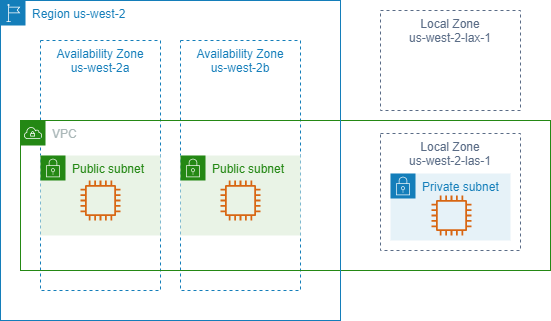
To use a Local Zone, you must first enable it. For more information, see Opt in to Local Zones. Next, create a subnet in the Local Zone. Finally, launch resources in the Local Zone subnet, such as instances, so that your applications are close to your users.
Available Local Zones
You can use the Amazon EC2 console or a command line interface to determine which
Local Zones are available for your account. For a complete list, see AWS Local Zones Locations
To find your Local Zones using the console
Open the Amazon EC2 console at https://console.aws.amazon.com/ec2/
. -
From the navigation bar, choose the Regions selector and then choose the parent Region.
-
On the navigation pane, choose EC2 Dashboard.
-
In the upper-right corner of the page, choose Account attributes, Zones.
To find your Local Zones using the AWS CLI
Use the describe-availability-zones command as follows to describe all
Local Zones in the specified Region, even if they are not enabled. To describe only
the Local Zones that you've enabled, omit the --all-availability-zones
option.
aws ec2 describe-availability-zones --regionregion-name--filters Name=zone-type,Values=local-zone --all-availability-zones
Opt in to Local Zones
Before you can specify a Local Zone for a resource or service, you must opt in to Local Zones.
Consideration
Some AWS resources might not be available in all Regions. Make sure that you
can create the resources that you need in the desired Regions or Local Zones before
launching an instance in a specific Local Zone. For a list of services supported in
each Local Zone see AWS Local Zones
Features
To opt in to Local Zones using the console
Open the Amazon EC2 console at https://console.aws.amazon.com/ec2/
. -
In the upper-left corner of the page, select New EC2 Experience. You cannot complete this task using the old console experience.
-
From the navigation bar, choose the Regions selector and then choose the parent Region.
-
On the navigation pane, choose EC2 Dashboard.
-
In the upper-right corner of the page, choose Account attributes, Zones.
-
For the Local Zone to enable, choose Manage.
-
For Zone group, choose Enabled.
-
Choose Update zone group.
To opt in to Local Zones using the AWS CLI
Use the modify-availability-zone-group command.
Launch instances in a Local Zone
When you launch an instance, you can specify a subnet that is in a Local Zone. You
also allocate an IP address from a network border group. A network border group is a
unique set of Availability Zones, Local Zones, or Wavelength Zones from which AWS
advertises IP addresses, for example, us-west-2-lax-1a.
You can allocate the following IP addresses from a network border group:
-
Amazon-provided Elastic IPv4 addresses
-
Amazon-provided IPv6 VPC addresses (available only in the Los Angeles zones)
For more information about how to launch an instance in a Local Zone, see Getting started with AWS Local Zones in the AWS Local Zones User Guide.
Wavelength Zones
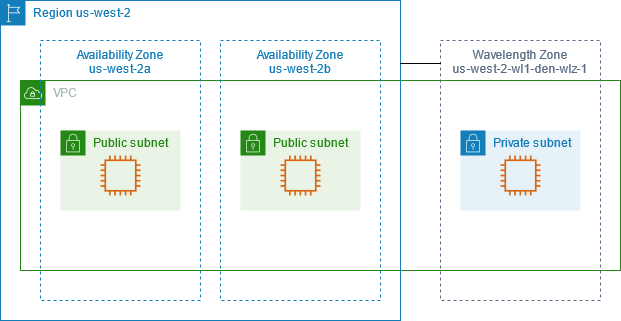
AWS Wavelength enables developers to build applications that deliver ultra-low latencies to mobile devices and end users. Wavelength deploys standard AWS compute and storage services to the edge of telecommunication carriers' 5G networks. Developers can extend a virtual private cloud (VPC) to one or more Wavelength Zones, and then use AWS resources like Amazon EC2 instances to run applications that require ultra-low latency and a connection to AWS services in the Region.
A Wavelength Zone is an isolated zone in the carrier location where the Wavelength infrastructure is deployed. Wavelength Zones are tied to a Region. A Wavelength Zone is a logical extension of a Region, and is managed by the control plane in the Region.
The code for a Wavelength Zone is its Region code followed by an identifier that
indicates the physical location. For example, us-east-1-wl1-bos-wlz-1 in
Boston.
The following diagram illustrates the AWS Region us-west-2, two of its
Availability Zones, and a Wavelength Zone. The VPC spans the Availability Zones and the
Wavelength Zone. Each zone in the VPC has one subnet, and each subnet has an
instance.
To use a Wavelength Zone, you must first opt in to the Zone. For more information, see Enable Wavelength Zones. Next, create a subnet in the Wavelength Zone. Finally, launch your resources in the Wavelength Zones subnet, so that your applications are closer to your end users.
Wavelength Zones are not available in every Region. For information about the Regions that support Wavelength Zones, see Available Wavelength Zones in the AWS Wavelength Developer Guide.
Describe your Wavelength Zones
You can use the Amazon EC2 console or the command line interface to determine which Wavelength Zones are available for your account. For more information about these command line interfaces, see Access Amazon EC2.
To find your Wavelength Zones using the console
Open the Amazon EC2 console at https://console.aws.amazon.com/ec2/
. -
From the navigation bar, choose the Regions selector and then choose the Region.
-
On the navigation pane, choose EC2 Dashboard.
-
In the upper-right corner of the page, choose Account attributes, Zones.
To find your Wavelength Zones using the AWS CLI
-
Use the describe-availability-zones command as follows to describe the Wavelength Zones within the specified Region that are enabled for your account.
aws ec2 describe-availability-zones --regionregion-name -
Use the describe-availability-zones command as follows to describe the Wavelength Zones regardless of the opt-in status.
aws ec2 describe-availability-zones --all-availability-zones
Enable Wavelength Zones
Before you specify a Wavelength Zone for a resource or service, you must opt in to Wavelength Zones.
Considerations
-
Some AWS resources are not available in all Regions. Make sure that you can create the resources that you need in the desired Region or Wavelength Zone before launching an instance in a specific Wavelength Zone.
To opt in to Wavelength Zone using the console
Open the Amazon EC2 console at https://console.aws.amazon.com/ec2/
. -
In the upper-left corner of the page, select New EC2 Experience. You cannot complete this task using the old console experience.
-
From the navigation bar, choose the Regions selector and then choose the Region.
-
On the navigation pane, choose EC2 Dashboard.
-
In the upper-right corner of the page, choose Account attributes, Zones.
-
Under Wavelength Zones, choose Manage for the Wavelength Zone.
-
Choose Enable.
-
Choose Update zone group.
To enable Wavelength Zones using the AWS CLI
Use the modify-availability-zone-group command.
Launch instances in a Wavelength Zone
When you launch an instance, you can specify a subnet which is in a Wavelength
Zone. You also allocate a carrier IP address from a network border group, which is a
unique set of Availability Zones, Local Zones, or Wavelength Zones from which AWS
advertises IP addresses, for example, us-east-1-wl1-bos-wlz-1.
For information about how to launch an instance in a Wavelength Zone, see Get started with AWS Wavelength in the AWS Wavelength Developer Guide.
AWS Outposts
AWS Outposts is a fully managed service that extends AWS infrastructure, services, APIs, and tools to customer premises. By providing local access to AWS managed infrastructure, AWS Outposts enables customers to build and run applications on premises using the same programming interfaces as in AWS Regions, while using local compute and storage resources for lower latency and local data processing needs.
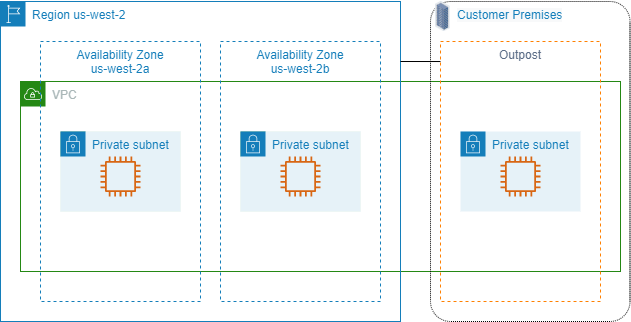
An Outpost is a pool of AWS compute and storage capacity deployed at a customer site. AWS operates, monitors, and manages this capacity as part of an AWS Region. You can create subnets on your Outpost and specify them when you create AWS resources. Instances in Outpost subnets communicate with other instances in the AWS Region using private IP addresses, all within the same VPC.
The following diagram illustrates the AWS Region us-west-2, two of its
Availability Zones, and an Outpost. The VPC spans the Availability Zones and the
Outpost. The Outpost is in an on-premises customer data center. Each zone in the VPC has
one subnet, and each subnet has an instance.
To begin using AWS Outposts, you must create an Outpost and order Outpost capacity. For
more information about Outposts configurations, see our catalog
Launch instances on an Outpost
You can launch EC2 instances in the Outpost subnet that you created. Security groups control inbound and outbound traffic for instances with elastic network interfaces in an Outpost subnet, as they do for instances in an Availability Zone subnet. To connect to an EC2 instance in an Outpost subnet, you can specify a key pair when you launch the instance, as you do for instances in an Availability Zone subnet.
We recommend that you limit the root volume for an instance on an Outpost rack to
30 GiB or smaller. You can specify data volumes in the block device mapping of the
AMI or the instance to provide additional storage. To trim unused blocks from the
boot volume, see How to Build Sparse EBS Volumes
We recommend that you increase the NVMe timeout for the root volume. For more information, see I/O operation timeout.
For information about how to create an Outpost, see Get started with AWS Outposts in the AWS Outposts User Guide.
Create a volume on an Outpost rack
AWS Outposts offers rack and server form factors. If your capacity is on an Outpost rack, you can create EBS volumes in the Outpost subnet that you created. When you create the volume, specify the Amazon Resource Name (ARN) of the Outpost.
The following create-volume command creates an empty 50 GB volume on the specified Outpost.
aws ec2 create-volume --availability-zoneus-east-2a--outpost-arn arn:aws:outposts:us-east-2:123456789012:outpost/op-03e6fecad652a6138--size50
You can dynamically modify the size of your Amazon EBS gp2 volumes without detaching them. For more information about modifying a volume without detaching it, see Request modifications to your EBS volumes.
