| Did this page help you? Yes No Tell us about it... |
Topics
This section describes Amazon EC2 security groups and how to use them.
![]() | Important |
|---|---|
For information about Amazon VPC security groups, go to Security Groups in the Amazon Virtual Private Cloud User Guide. |
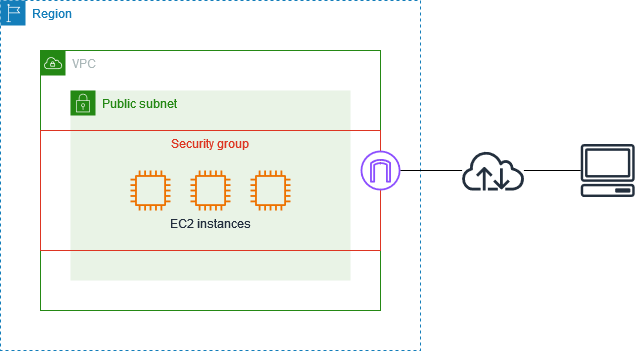
A security group acts as a firewall that controls the traffic allowed into a group of instances. When you launch an Amazon EC2 instance, you can assign it to one or more security groups. For each security group, you add rules that govern the allowed inbound traffic to instances in the group. All other inbound traffic is discarded. You can modify rules for a security group at any time. The new rules are automatically enforced for all existing and future instances in the group.
![]() | Note |
|---|---|
You can create up to 500 Amazon EC2 security groups in each region in an account, with up to 100 rules per security group. In Amazon VPC, you can have up to 50 security groups, with up to 50 rules per security group, in each VPC. The Amazon VPC security group limit does not count against the Amazon EC2 security group limit. |
![]() | Caution |
|---|---|
Because an Amazon EC2 instance can belong to multiple security groups, more than 100 rules can apply to an instance. Associating hundreds of rules with an instance might cause problems when you access the instance. We recommend you condense your rules as much as possible. |
Your AWS account automatically comes with a default security group for your Amazon EC2 instances. If you don't specify another security group at instance launch time, the instance is automatically launched into this default group. These are the initial settings for this group:
Allow no inbound traffic
Allow all outbound traffic
Allow the instances in the group to talk to each other
You can change the default group's inbound rules. For example, you might change the rules to allow SSH or Remote Desktop connections from specific hosts for the purposes of instance management. For another example, see Modifying the Default Group.
The default security group is automatically named default, and it has an AWS-assigned ID. You can't delete the default security group.
If you don't want all your instances to use the default security group, you can create your own (up to 500 total). You can create groups that reflect the different roles your EC2 instances play in your system (e.g., web server, database server). For an example, see Creating a Three-Tier Web Service.
When you create a new security group, you must provide a friendly name and a description of the group. AWS assigns each group a unique ID (e.g., sg-1a2b3c4d). These are the initial settings for a new group that you create:
Allow no inbound traffic
Allow all outbound traffic
After you've created the security group, you can change its rules to reflect the type of inbound traffic you want to allow into the group. You can change only the inbound rules; EC2 security groups don't have modifiable outbound rules. If you want the instances in the group to talk to each other, you must explicitly add rules to allow that.
When you launch an instance, you can assign it to as many groups as you like. When deciding whether to allow traffic to a given instance, we evaluate all the rules from all the groups the instance is in.
If you don't specify any groups at launch time, the instance is automatically assigned to the default group and uses the rules you've set up for that group.
After an instance is running, you can't change which EC2 security groups it belongs to. However, you can change the rules of an existing group, and those changes propagate to the instances in the group.
An EC2 security group's rules control the inbound traffic allowed in to the instances in the group. All outbound traffic is automatically allowed. You can't change the outbound behavior.
Each EC2 security group rule enables a specific source to access the instances in the group using a certain protocol (TCP, UDP, or ICMP) and destination port or ports (if the protocol is TCP or UDP). For example, a rule could allow IP address 203.0.113.1 (the source) to access the instances in the group on TCP port 22 (the protocol and destination port). If you specify ICMP as the protocol for the rule, you must also specify an ICMP type and code.
The source can be an individual IP address (203.0.113.1), a range of addresses (e.g., 203.0.113.0/24), or an EC2 security group. The security group can be another group in your AWS account, a group in another AWS account, or the security group itself.
By specifying a security group as the source, you allow incoming traffic from all instances that belong to the source security group. The incoming traffic that you allow is based on the private IP addresses of the instances in the source security group. You might specify another security group in your account if you're creating a three-tier web service (see Creating a Three-Tier Web Service).
If you specify the security group itself as the source, each instance in the group will accept inbound traffic from fellow group members. For example, the default security group specifies itself as a source security group in its inbound security group rules. This is why members of the default security group allow inbound traffic from other members of the default security group.
You can't modify an existing rule in a group. However, you can add and remove rules to a group at any time. Your changes propagate to existing instances in the group after a short period.
Each EC2 security group can have up to 100 rules.
To specify a range of IP addresses using CIDR notation, you specify a base IP address and
a suffix that indicates the number of significant bits in the IP address used to identify the network.
The larger the suffix, the fewer number of hosts will be in the CIDR block. For example,
say you specify a source as 10.10.1.32/27. This specifies 10.10.1.32 as the base IP address and 27 as
the suffix. Because 27 of the 32 possible bits in the IP4 address are allocated to the network address,
there are only 5 (32 minus 27) bits available to specify host addresses. You can only represent
32 distinct numbers with 5 bits (2 to the 5th power = 32), which means 32 hosts on
that network match the criteria and are in the CIDR block.
To better understand how this works, let’s look at it in binary notation.
The first 27 bits have to be an exact match in order for the range to match.
It doesn’t matter what happens after the 27 bits.
For this example, any IP address that has 00001010.00001010.00000001.001 in the first 27 bits will match the address.
Here's how it works:
10.10.1.32 =00001010.00001010.00000001.00100000 First 27 bits==00001010.00001010.00000001.00110.10.1.44 matches 10.10.1.32/27 =00001010.00001010.00000001.00101100 But 10.10.1.90 doesn’t match 10.10.1.32/27 =00001010.00001010.00000001.01011010
For more information on CIDR, see http://en.wikipedia.org/wiki/Classless_Inter-Domain_Routing.
If you're using Amazon Virtual Private Cloud, you must create VPC security groups specifically for your VPC instances. These groups work only inside the VPC where you've created them. Any EC2 security groups you have don't work inside your VPC. You can't create VPC security groups that reference EC2 groups, and you can't create EC2 security groups that reference VPC security groups..
You can have a VPC security group with the same name as an EC2 security group (it's possible because the groups have unique IDs). When working with VPC security groups, you must use the ID and not the name to identify the group.
VPC security groups have additional capabilities that EC2 security groups don't have. The following sections describe how to work with EC2 groups. To learn more about VPC security groups and how to work with them, go to Security Groups in the Amazon Virtual Private Cloud User Guide.
The following table summarizes the available commands and corresponding API actions for EC2 security groups. For more information about the commands, go to the Amazon Elastic Compute Cloud Command Line Reference. For more information about the API actions, go to the Amazon Elastic Compute Cloud API Reference.
| Command and API Action | Description |
|---|---|
|
|
Creates a new security group for use with your account. |
|
|
Adds one or more rules to a security group. |
|
|
Returns information about security groups associated with your account. |
|
|
Removes one or more rules from a security group. |
|
|
Deletes security groups associated with your account. |
![]() | Note |
|---|---|
VPC security groups have additional API actions and commands that apply to them. For more information, go to Security Groups in the Amazon Virtual Private Cloud User Guide. |
This section describes how to create a security group.
![]() | Note |
|---|---|
You can create up to 500 Amazon EC2 security groups in each region in an account, with up to 100 rules per security group. In Amazon VPC, you can have up to 50 security groups, with up to 50 rules per security group, in each VPC. The Amazon VPC security group limit does not count against the Amazon EC2 security group limit. |
![]() | Caution |
|---|---|
Because an Amazon EC2 instance can belong to multiple security groups, more than 100 rules can apply to an instance. Associating hundreds of rules with an instance might cause problems when you access the instance. We recommend you condense your rules as much as possible. |
To create a security group
Open the Amazon EC2 console at https://console.aws.amazon.com/ec2/.
Click Security Groups in the Navigation pane.
The console displays a list of current security groups.
Click Create Security Group.
The Create Security Group dialog box appears.
Configure the following settings and click Yes, Create.
Name
Description
For VPC, select No VPC.
Amazon EC2 creates the security group and adds it to your list of groups.
To create a security group
Construct a Query request similar to the following example.
https://ec2.amazonaws.com/ ?Action=CreateSecurityGroup &GroupName=security-group-name&GroupDescription=security-group-description&...auth parameters...
Following is an example response.
<CreateSecurityGroupResponse xmlns="http://ec2.amazonaws.com/doc/2012-05-01/"> <requestId>53effa54-17f1-47ae-ba5c-118b1d2617c2</requestId> <return>true</return> <groupdId>sg-43de5aab</groupId> </CreateSecurityGroupResponse>
This section describes how to view your security groups.
To view security groups
Open the Amazon EC2 console at https://console.aws.amazon.com/ec2/.
Click Security Groups in the Navigation pane.
The console displays a list of security groups that belong to the account.
To view more information about a security group, including its rules, select it.
The group's information is displayed in the lower pane.
To view security groups
Enter the following command:
PROMPT>ec2-describe-group [group...]
Amazon EC2 returns output similar to the following example.
GROUP sg-455b6c31 111122223333 WebServers web PERMISSION 111122223333 WebServers ALLOWS tcp 80 80 FROM CIDR 0.0.0.0/0 ingress
![]() | Tip |
|---|---|
You can filter this list to return only certain security groups of interest to you. For more information about how to filter the results, go to ec2-describe-group in the Amazon Elastic Compute Cloud Command Line Reference. |
To view security groups
Construct the following Query request.
https://ec2.amazonaws.com/
?Action=DescribeSecurityGroups
&GroupName.1=security-group-name
&...auth parameters...Following is an example response.
<DescribeSecurityGroupsResponse xmlns="http://ec2.amazonaws.com/doc/2012-05-01/">
<requestId>59dbff89-35bd-4eac-99ed-be587EXAMPLE>/requestId>
<securityGroupInfo>
<item>
<ownerId>999988887777</ownerId>
<groupId>sg-455b6c31</groupId>
<groupName>WebServers</groupName>
<groupDescription>Web</groupDescription>
<vpcId/>
<ipPermissions>
<item>
<ipProtocol>tcp</ipProtocol>
<fromPort>80</fromPort>
<toPort>80</toPort>
<groups/>
<ipRanges>
<item>
<cidrIp>0.0.0.0/0</cidrIp>
</item>
</ipRanges>
</item>
</ipPermissions>
<ipPermissionsEgress/>
<tagSet/>
</item>
</securityGroupInfo>
</DescribeSecurityGroupsResponse>![]() | Tip |
|---|---|
You can filter this list to return only certain security groups of interest to you. For more information about how to filter the results, go to DescribeSecurityGroups in the Amazon Elastic Compute Cloud API Reference. |
This section describes how to add a rule to a security group.
When you add a rule to a security group, the new rule is automatically applied to any instances in the group.
![]() | Note |
|---|---|
You can create up to 500 Amazon EC2 security groups in each region in an account, with up to 100 rules per security group. In Amazon VPC, you can have up to 50 security groups, with up to 50 rules per security group, in each VPC. The Amazon VPC security group limit does not count against the Amazon EC2 security group limit. |
![]() | Caution |
|---|---|
Because an Amazon EC2 instance can belong to multiple security groups, more than 100 rules can apply to an instance. Associating hundreds of rules with an instance might cause problems when you access the instance. We recommend you condense your rules as much as possible. |
![]() | Note |
|---|---|
After an EC2 instance is running, you can't change which EC2 security groups it belongs to. Exception: If you're using Amazon VPC, you can change which VPC security groups a VPC instance is in after launch. For more information, go to Security Groups in the Amazon Virtual Private Cloud User Guide. |
To add a rule to a security group
Open the Amazon EC2 console at https://console.aws.amazon.com/ec2/.
Click Security Groups in the Navigation pane.
The console displays a list of security groups that belong to the account.
Select an EC2 security group.
Its rules appear on the Inbound tab in the lower pane.

To add a rule:
From the Create a new rule: drop-down list, select the option you want.
Specify a port or port range (if you've chosen a custom protocol rule).
In the Source field, specify one of the following:
Name or ID of a security group (to allow access from that group). If the group isn't in your AWS account, prefix the group name with the AWS account ID and a forward slash (e.g., 111122223333/OtherSecurityGroup).
IP address range in CIDR notation (to allow access from that IP address range). For example, enter 0.0.0.0/0 to allow all IP addresses to access the specified port range. Enter an IP address or range of addresses to limit access to one computer or a network, for example 203.0.113.5/32.
Click Add Rule.
An asterisk appears on the Inbound tab.
Click Apply Rule Changes.
The new rule is created and applied to all instances that belong to the security group.
To add a rule to a security group
Enter the following command:
PROMPT>ec2-authorizegroup[-Pprotocol] (-pport_range| -ticmp_type_code) [-usource_group_user...] [-osource_group...] [-ssource_subnet...]
For example, to modify the default security group to allow port 80 access from all IP addresses:
PROMPT> ec2-authorize default -p 80Amazon EC2 returns output similar to the following example.
GROUP sg-2eac845a PERMISSION ALLOWS tcp 80 80 FROM CIDR 0.0.0.0/0 ingress
For example, to modify the default security group to allow SSH access from your own system's IP address:
PROMPT>ec2-authorize -p 22 -s<your_ip_address>/32
Amazon EC2 returns output similar to the following example.
GROUP sg-2eac845a
PERMISSION ALLOWS tcp 22 22 FROM CIDR <your_ip_address>/32 ingressTo add a rule to a security group
Construct a Query request similar to the following.
https://ec2.amazonaws.com/ ?Action=AuthorizeSecurityGroupIngress &IpPermissions.1.IpProtocol=tcp &IpPermissions.1.FromPort=80 &IpPermissions.1.ToPort=80 &IpPermissions.1.IpRanges.1.CidrIp=0.0.0.0/0 &...auth parameters...
Following is an example response.
<AuthorizeSecurityGroupIngressResponse xmlns="http://ec2.amazonaws.com/doc/2012-05-01/"> <requestId>59dbff89-35bd-4eac-99ed-be587EXAMPLE</requestId> <return>true</return> </AuthorizeSecurityGroupIngressResponse>
This section describes how to delete a security group rule.
When you delete a rule from a security group, the change is automatically applied to any instances in the group.
To delete a security group rule
Open the Amazon EC2 console at https://console.aws.amazon.com/ec2/.
Click Security Groups in the Navigation pane.
The console displays a list of security groups that belong to the account.
Select a security group.
Its rules appear on the Inbound tab in the lower pane.
To delete a rule, click Delete next to the rule.
An asterisk appears on the Inbound tab.
Click Apply Rule Changes.
Amazon EC2 deletes the security group rule.
The syntax of the ec2-revoke command is essentially identical to the syntax of the
ec2-authorize command. To delete a rule, you specify the parts of the rule (e.g., protocol, port,
CIDR range, etc.).
To delete a security group rule
Enter the following command:
PROMPT>ec2-revokegroup[-Pprotocol] (-pport_range| -ticmp_type_code) [-usource_group_user...] [-osource_group...] [-ssource_subnet...]
For example, to modify the default security group to remove port 80 access from all IP addresses:
PROMPT> ec2-revoke default -p 80Amazon EC2 returns output similar to the following example.
GROUP sg-2eac845a PERMISSION ALLOWS tcp 80 80 FROM CIDR 0.0.0.0/0 ingress
You can confirm the rule has been deleted by describing the security group with
ec2-describe-group.
To delete a security group rule
Construct a Query request similar to the following.
https://ec2.amazonaws.com/ ?Action=RevokeSecurityGroupIngress &IpPermissions.1.IpProtocol=tcp &IpPermissions.1.FromPort=80 &IpPermissions.1.ToPort=80 &IpPermissions.1.IpRanges.1CidrIp=0.0.0.0/0 &...auth parameters...
Following is an example response.
<RevokeSecurityGroupIngressResponse xmlns="http://ec2.amazonaws.com/doc/2012-05-01/"> <requestId>59dbff89-35bd-4eac-99ed-be587EXAMPLE</requestId> <return>true</return> </RevokeSecurityGroupIngressResponse>
This section describes how to delete a security group.
The group must not have any instances in it. You can't delete the default security group.
To delete a security group
Open the Amazon EC2 console at https://console.aws.amazon.com/ec2/.
Click Security Groups in the Navigation pane.
The console displays a list of security groups that belong to the account.
Select a security group and click Delete.
A confirmation dialog box appears.
Click Yes, Delete.
Amazon EC2 deletes the security group.
To delete a security group
Construct the following Query request.
https://ec2.amazonaws.com/
?Action=DeleteSecurityGroup
&GroupName=security-group-name
&...auth parameters...Following is an example response.
<DeleteSecurityGroupResponse xmlns="http://ec2.amazonaws.com/doc/2012-05-01/"> <requestId>59dbff89-35bd-4eac-99ed-be587EXAMPLE</requestId> <return>true</return> </DeleteSecurityGroupResponse>
This section provides examples of configuring EC2 security groups using the command line tools.
![]() | Note |
|---|---|
In addition to these examples, you can maintain your own firewall on any of your instances. This can be useful if you have specific requirements not met by the Amazon EC2 distributed firewall. |
This example shows Albert modifying the default group to meet his security needs.
Albert Modifies the Default Group
|
1 |
Albert launches a copy of his favorite public AMI.
|
|
2 |
Albert, who is a cautious type, checks the access rules of the default group.
Albert notices that it only accepts ingress network connections from other members of the default group for all available protocols (TCP, UDP, ICMP) and ports. |
|
3 |
Albert, being cautious, uses the Linux/UNIX
|
|
4 |
Albert decides he should be able to SSH into his instance, but only from his own machine.
|
|
5 |
Albert repeats the Linux/UNIX
Albert is happy. |
Mary wants to deploy her public, failure resilient, three-tier web service (web, application, and database servers) in Amazon EC2. Her grand plan is to have her web tier start off executing in seven instances of ami-fba54092, her application tier executing in twenty instances of ami-e3a5408a,and her multi-master database in two instances of ami-f1a54098. She's concerned about the security of her subscriber database, so she wants to restrict network access to her middle and back tier machines. When the traffic to her site increases over the holiday shopping period, she adds additional instances to her web and application tiers to handle the extra load.
Launch Process
|
1 |
First, Mary creates a group for her Apache web server instances and allows HTTP access to the world.
|
|
2 |
Mary launches seven instances of her web server AMI as members of the
|
|
3 |
Being as cautious as Albert, Mary uses the Linux/UNIX
|
|
4 |
Mary verifies her web server can be reached.
Mary can reach her web server. |
|
5 |
Mary creates a separate group for her application server.
|
|
6 |
Mary starts twenty instances as members of
|
|
7 |
Mary grants network access between her web server group and the application server group.
|
|
8 |
Mary verifies access to her app server is restricted by port scanning one of the application
servers using the Linux and UNIX
|
|
9 |
Mary confirms that her web servers have access to her application servers.
|
|
10 |
Mary repeats these steps to create the database server group and to grant access between the application server and database server groups. |