View information about an Amazon EBS volume
You can view descriptive information about your EBS volumes. For example, you can view information about all volumes in a specific Region or view detailed information about a single volume, including its size, volume type, whether the volume is encrypted, which KMS key was used to encrypt the volume, and the specific instance to which the volume is attached.
You can get additional information about your EBS volumes, such as how much disk space is available, from the operating system on the instance.
View volume information
You can view information about a volume using one of the following methods.
Volume states
Volume state describes the availability of an Amazon EBS volume. You can view the volume state in the State column on the Volumes page in the console, or by using the describe-volumes AWS CLI command.
An Amazon EBS volume transitions through different states from the moment it is created until it is deleted.
The following illustration shows the transitions between volume states. You can create
a volume from an Amazon EBS snapshot or create an empty volume. When you create a volume, it
enters the creating state. After the volume is ready for use, it enters the
available state. You can attach an available volume to an instance in the
same Availability Zone as the volume. You must detach the volume before you can attach it
to a different instance or delete it. You can delete a volume when you no longer need it.
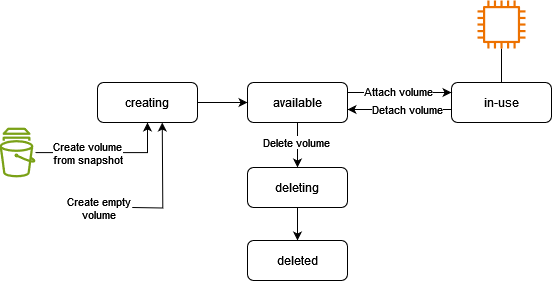
The following table summarizes the volume states.
| State | Description |
|---|---|
creating |
The volume is being created. |
available |
The volume is not attached to an instance. |
in-use |
The volume is attached to an instance. |
deleting |
The volume is being deleted. |
deleted |
The volume is deleted. |
error |
The underlying hardware related to your EBS volume has failed, and the data
associated with the volume is unrecoverable. For information about how to restore
the volume or recover the data on the volume, see My EBS volume has a status
of "error" |
View volume metrics
You can get additional information about your EBS volumes from Amazon CloudWatch. For more information, see Amazon CloudWatch metrics for Amazon EBS.
View free disk space
You can get additional information about your EBS volumes, such as how much disk space is available, from the Linux operating system on the instance. For example, use the following command:
[ec2-user ~]$df -hT /dev/xvda1Filesystem Type Size Used Avail Use% Mounted on /dev/xvda1 xfs 8.0G 1.2G 6.9G 15% /
Tip
You can also use the CloudWatch agent to collect disk space usage metrics from an Amazon EC2 instance without connecting to the instance. For more information, see Create the CloudWatch agent configuration file and Installing the CloudWatch agent in the Amazon CloudWatch User Guide. If you need to monitor disk space usage for multiple instances, you can install and configure the CloudWatch agent on those instances using Systems Manager. For more information, see Installing the CloudWatch agent using Systems Manager.
For information about viewing free disk space on a Windows instance, see View free disk space in the Amazon EC2 User Guide for Windows Instances.
You can get additional information about your EBS volumes, such as how much disk space is available, from the Windows operating system on the instance. For example, you can view the free disk space by opening File Explorer and selecting This PC.
You can also view the free disk space using the following dir command and
examining the last line of the output:
C:\>dir C:Volume in drive C has no label. Volume Serial Number is 68C3-8081 Directory of C:\ 03/25/2018 02:10 AM <DIR> . 03/25/2018 02:10 AM <DIR> .. 03/25/2018 03:47 AM <DIR> Contacts 03/25/2018 03:47 AM <DIR> Desktop 03/25/2018 03:47 AM <DIR> Documents 03/25/2018 03:47 AM <DIR> Downloads 03/25/2018 03:47 AM <DIR> Favorites 03/25/2018 03:47 AM <DIR> Links 03/25/2018 03:47 AM <DIR> Music 03/25/2018 03:47 AM <DIR> Pictures 03/25/2018 03:47 AM <DIR> Saved Games 03/25/2018 03:47 AM <DIR> Searches 03/25/2018 03:47 AM <DIR> Videos 0 File(s) 0 bytes 13 Dir(s) 18,113,662,976 bytes free
You can also view the free disk space using the following fsutil
command:
C:\>fsutil volume diskfree C:Total # of free bytes : 18113204224 Total # of bytes : 32210153472 Total # of avail free bytes : 18113204224
Tip
You can also use the CloudWatch agent to collect disk space usage metrics from an Amazon EC2 instance without connecting to the instance. For more information, see Create the CloudWatch agent configuration file and Installing the CloudWatch agent in the Amazon CloudWatch User Guide. If you need to monitor disk space usage for multiple instances, you can install and configure the CloudWatch agent on those instances using Systems Manager. For more information, see Installing the CloudWatch agent using Systems Manager.
For information about viewing free disk space on a Linux instance, see View free disk space in the Amazon EC2 User Guide for Linux Instances.
