Amazon Elastic Compute Cloud
User Guide (API Version 2011-12-15)
Print this pageEmail this pageGo to the ForumsView the PDFShare this page on TwitterShare this page on FacebookBookmark this page on DeliciousSubmit this page to RedditSubmit this page to DiggDid this page help you?  Yes  No   Tell us about it...

From a Loopback

Creating AMIs through a loopback involves doing a full operating system installation on a clean root file system, but avoids having to create a new root disk partition and file system on a physical disk. After you have installed your operating system, you can bundle the resulting image as an AMI with the ec2-bundle-image command, which is part of the AMI tools (and not an API action). For more information about the ec2-bundle-image command and the AMI tools, go to the Amazon Elastic Compute Cloud Command Line Reference.

[Note]Note

This method works only with AMIs that use instance stores for their root devices. This method is not applicable for AMIs backed by Amazon EBS.

Before you select an AMI, determine whether the instance types you plan to launch are 32-bit or 64-bit. For more information, see Instance Families and Types.

Make sure you are using GNU Tar 1.15 or later.

These examples use Fedora Core 4. Please make any adjustments for your distribution.

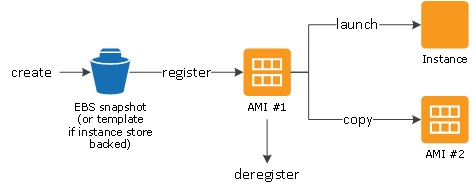
The following diagram shows the general tasks in creating Amazon EC2 instance store-backed Linux/UNIX AMIs from a loopback.

Process to create Amazon EC2 instance store-backed Linux/UNIX AMI from a loopback file

Create a File to Host the AMI

The dd utility can create files of arbitrary sizes. Make sure to create a file large enough to host the operating system, tools, and applications that you will install. For example, a baseline Linux/UNIX installation requires about 700 MB, so your file should be at least 1 GB.

To create a file to host the AMI

  • Enter the following command:

    # dd if=/dev/zero of=image_name bs=1M count=size

    The <image_name> is the name of the image file you are creating and <size> is the size of the file in megabytes.

Example

The following example creates a 1 GB file (1024*1 MB).

# dd if=/dev/zero of=my-image.fs bs=1M count=1024
1024+0 records in
1024+0 records out

Create a Root File System Inside the File

The mkfs utility has several variations that can create a file system inside the image file you are creating. Typical Linux/UNIX installations default to ext2 or ext3 file systems.

To create an ext3 file system

  • Enter the following command:

    # mke2fs -F -j <image_name>

    The <image_name> is the name of the image file.

Example

The following example creates an ext3 file system.

# mke2fs -F -j my-image.fs
mke2fs 1.38 (30-Jun-2005)
Filesystem label=
OS type: Linux
Block size=4096 (log=2)
Fragment size=4096 (log=2)
131072 inodes, 262144 blocks
13107 blocks (5.00%) reserved for the super user
First data block=0
Maximum filesystem blocks=268435456
8 block groups
32768 blocks per group, 32768 fragments per group
16384 inodes per group
Superblock backups stored on blocks:
        32768, 98304, 163840, 229376

Writing inode tables: done
Creating journal (8192 blocks): done
Writing superblocks and filesystem accounting information: done

This filesystem will be automatically checked every 24 mounts or
180 days, whichever comes first. Use tune2fs -c or -i to override.

Mount the File through Loopback

The loopback module enables you to use a normal file as if it were a raw device, which gives you a file system within a file. Mounting a file system image file through loopback presents it as part of the normal file system. You can then modify it using your favorite file management tools and utilities.

To mount the file through loopback

  1. Enter the following command to create a mount point in the file system where the image will be attached:

    # mkdir <image_mountpoint>

    The <image_mountpoint> is the location where the image will be mounted.

  2. Mount the file system image:

    # mount -o loop  <image_name> <image_mountpoint>

    The <image_name> is the name of the image file and <image_mountpoint> is the mount location.

Example

The following commands create and mount the my-image.fs image file.

# mkdir /mnt/ec2-fs
# mount -o loop my-image.fs /mnt/ec2-fs

Prepare for the Installation

Before the operating system installation can proceed, you must create and prepare the newly created root file system.

To prepare for the installation

  1. Create a /dev directory and populate it with a minimal set of devices. You can ignore the errors in the output.

    # mkdir /mnt/ec2-fs/dev
    # /sbin/MAKEDEV -d <image_mountpoint>/dev -x console
    # /sbin/MAKEDEV -d <image_mountpoint>/dev -x null
    # /sbin/MAKEDEV -d <image_mountpoint>/dev -x zero

    The <image_mountpoint> is the mount location.

  2. Create the fstab file within the /etc directory and add the following:

    /dev/sda1  /         ext3    defaults        1 1
    none       /dev/pts  devpts  gid=5,mode=620  0 0
    none       /dev/shm  tmpfs   defaults        0 0
    none       /proc     proc    defaults        0 0
    none       /sys      sysfs   defaults        0 0
  3. Create a temporary YUM configuration file (e.g., yum-xen.conf) and add the following content.

    [main]
    cachedir=/var/cache/yum
    debuglevel=2
    logfile=/var/log/yum.log
    exclude=*-debuginfo
    gpgcheck=0
    obsoletes=1
    reposdir=/dev/null
    
    [base]
    name=Fedora Core 4 - $basearch - Base
    mirrorlist=http://fedora.redhat.com/download/mirrors/fedora-core-$releasever
    enabled=1
    
    [updates-released]
    name=Fedora Core 4 - $basearch - Released Updates
    mirrorlist=http://fedora.redhat.com/download/mirrors/updates-released-fc$releasever
    enabled=1

    This step ensures that all the required basic packages and utilities are installed. You can locate this file anywhere on your main file system (not on your loopback file system) and is used only during installation.

  4. Enter the following:

    # mkdir <image_mountpoint>/proc
    # mount -t proc none <image_mountpoint>/proc

    The <image_mountpoint> is the mount location. A groupadd utility bug in the shadow-utils package (versions prior to 4.0.7-7) requires you to mount the new proc file system manually with the preceding command.

Example

These commands create the /dev directory and populate it with a minimal set of devices:

# mkdir /mnt/ec2-fs/dev
# /sbin/MAKEDEV -d /mnt/ec2-fs/dev -x console
MAKEDEV: mkdir: File exists
# /sbin/MAKEDEV -d /mnt/ec2-fs/dev -x null
MAKEDEV: mkdir: File exists
# /sbin/MAKEDEV -d /mnt/ec2-fs/dev -x zero
MAKEDEV: mkdir: File exists

This example creates and mounts the /mnt/ec2-fs/proc directory.

# mkdir /mnt/ec2-fs/proc
# mount -t proc none /mnt/ec2-fs/proc

Install the Operating System

At this stage, the basic directories and files are created and you are ready to install the operating system. Depending on the speed of the host and network link to the repository, this process might take a while.

To install the operating system

  • Enter the following command:

    # yum -c <yum_configuration_file> --installroot=<image_mountpoint> -y groupinstall Base

    The <yum_configuration_file> is the name of the YUM configuration file and <image_mountpoint> is the mount location.

    You now have a base installation, which you can configure for operation inside Amazon EC2 and customize for your use.

Example

This example installs the operating system at the /mnt/ec2-fs mount point using the yum-xen.conf YUM configuration file.

# yum -c yum-xen.conf --installroot=/mnt/ec2-fs -y groupinstall Base
Setting up Group Process
Setting up repositories
base                      100% |=========================| 1.1 kB    00:00
updates-released          100% |=========================| 1.1 kB    00:00
comps.xml                 100% |=========================| 693 kB    00:00
Setting up repositories
Reading repository metadata in from local files
primary.xml.gz            100% |=========================| 824 kB    00:00
base      : ################################################## 2772/2772
Added 2772 new packages, deleted 0 old in 15.32 seconds
primary.xml.gz            100% |=========================| 824 kB    00:00
updates-re: ################################################## 2772/2772
Added 2772 new packages, deleted 0 old in 10.74 seconds
...
Complete!

Configure the Operating System

After successfully installing the base operating system, you must configure your networking and hard drives to work in the Amazon EC2 environment.

To configure the operating system

  1. Edit (or create) /mnt/ec2-fs/etc/sysconfig/network-scripts/ifcfg-eth0 and make sure it contains at least the following information:

    DEVICE=eth0
    BOOTPROTO=dhcp
    ONBOOT=yes
    TYPE=Ethernet
    USERCTL=yes
    PEERDNS=yes
    IPV6INIT=no
    [Note]Note

    The Amazon EC2 DHCP server ignores hostname requests. If you set DHCP_HOSTNAME, the local hostname will be set on the instance but not externally. Additionally, the local hostname will be the same for all instances of the AMI, which might be confusing.

  2. Verify that the following line appears in the /mnt/ec2-fs/etc/sysconfig/network file so that networking starts:

    NETWORKING=yes
  3. Add the following lines to /mnt/ec2-fs/etc/fstab so that local disk storage on /dev/sda2 and swap space on /dev/sda3 are mounted at system startup:

    /dev/sda2  /mnt      ext3    defaults        0 0
    /dev/sda3  swap      swap    defaults        0 0
    [Note]Note

    The /dev/sda2 and /dev/sda3 storage locations only apply to small instances. For more information on instance storage, see Amazon EC2 Instance Storage.

  4. Allocate appropriate system run levels so that all your required services start at system startup. For example, to enable the service my-service on multiuser and networked run levels, enter the following commands:

    # chroot /mnt/ec2-fs /bin/sh
    # chkconfig --level 345 my-service on
    # exit 

    Your new installation is successfully installed and configured to operate in the Amazon EC2 environment.

  5. Enter the following commands to umount the image:

    # umount <image_mountpoint>/proc
    # umount -d <image_mountpoint> 

    The <image_mountpoint> is the mount location.

Example

The following example unmounts the installation from the /mnt/ec2-fs mount point.

# umount /mnt/ec2-fs/proc
# umount -d /mnt/ec2-fs 

Bundle the Loopback File Image

To bundle the loopback file image

  • Enter the following command:

    # ec2-bundle-image -i <image_name>.img -k <private_keyfile> -c <certificate_file> -u <user_id>  

    The <image_name> is the name of the image file, <private_keyfile> is the file that contains the private key, <certificate_file> is the file that contains the certificate, and <user_id> is the ID associated with your AWS account.

    [Note]Note

    The user ID is your AWS account ID without dashes. It consists of 12 to 15 characters, and it's not the same as your Access Key ID. For information about viewing your account ID, see Viewing Your Account ID.

Example

This command bundles an image created in a loopback file.

# ec2-bundle-image -k pk-HKZYKTAIG2ECMXYIBH3HXV4ZBEXAMPLE.pem -c cert-HKZYKTAIG2ECMXYIBH3HXV4ZBEXAMPLE.pem -u 111122223333 -i image.img -d bundled/ -p fred -r x86_64
	Please specify a value for arch [i386]: 
	Bundling image file...
	Splitting bundled/fred.gz.crypt...
	Created fred.part.00
	Created fred.part.01
	Created fred.part.02
	Created fred.part.03
	Created fred.part.04
	Created fred.part.05
	Created fred.part.06
	Created fred.part.07
	Created fred.part.08
	Created fred.part.09
	Created fred.part.10
	Created fred.part.11
	Created fred.part.12
	Created fred.part.13
	Created fred.part.14
	Generating digests for each part...
	Digests generated.
	Creating bundle manifest...
	ec2-bundle-image complete.